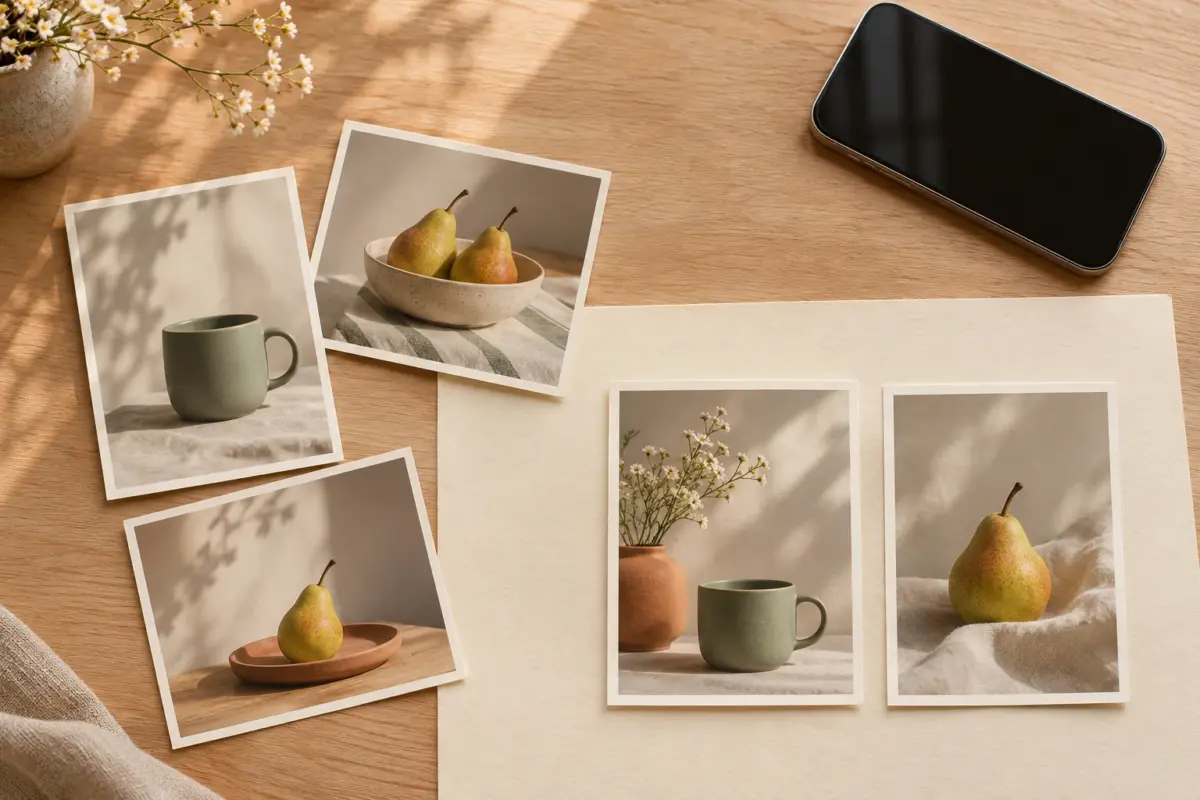
After an event or a small product shoot, you can end up with dozens of nearly identical photographs. Deleting them feels premature, but deciding what to edit becomes a project of its own. Use iPhone editing shortlist albums to gather candidates first: a focused working list, not a reason to throw the other photographs away.
Albums in Photos help you organise photos and videos. Apple also distinguishes deleting an album from deleting photographs in your library, your overall photo collection.[1] That distinction matters when you are still deciding. You can organise the work without treating every unselected image as something that must go.
Give your iPhone editing shortlist albums a clear job

Start with a specific sentence: “I need three cup views for a catalogue,” or “I want one image that captures the event.” That is more useful than an album called “Good photos”, which can collect more candidates without bringing you closer to a decision.
Name the album after the activity and intended use. “November cups — catalogue candidates” is one example, not a required naming system. If you have two different needs, such as product details and atmosphere, decide whether separate lists will actually help. You do not need a folder structure before you have a reason for one.
View each candidate large enough to judge the important details. For products, look at whether the shape, colour and relevant features are clear. For an event, consider expression, timing and who needs to be in the frame. The sharpest photograph is not necessarily the most meaningful; an appealing moment can still be hard to use if its essential detail is blurred.
Compare similar photographs by the jobs they do. Two almost identical angles may add less than a front view, a handle detail and a wider setting. A shortlist is simply a smaller set of options. There is no ideal number for every task: keep the images that serve your purpose without rushing to delete the rest.
Create a personal album you can find again
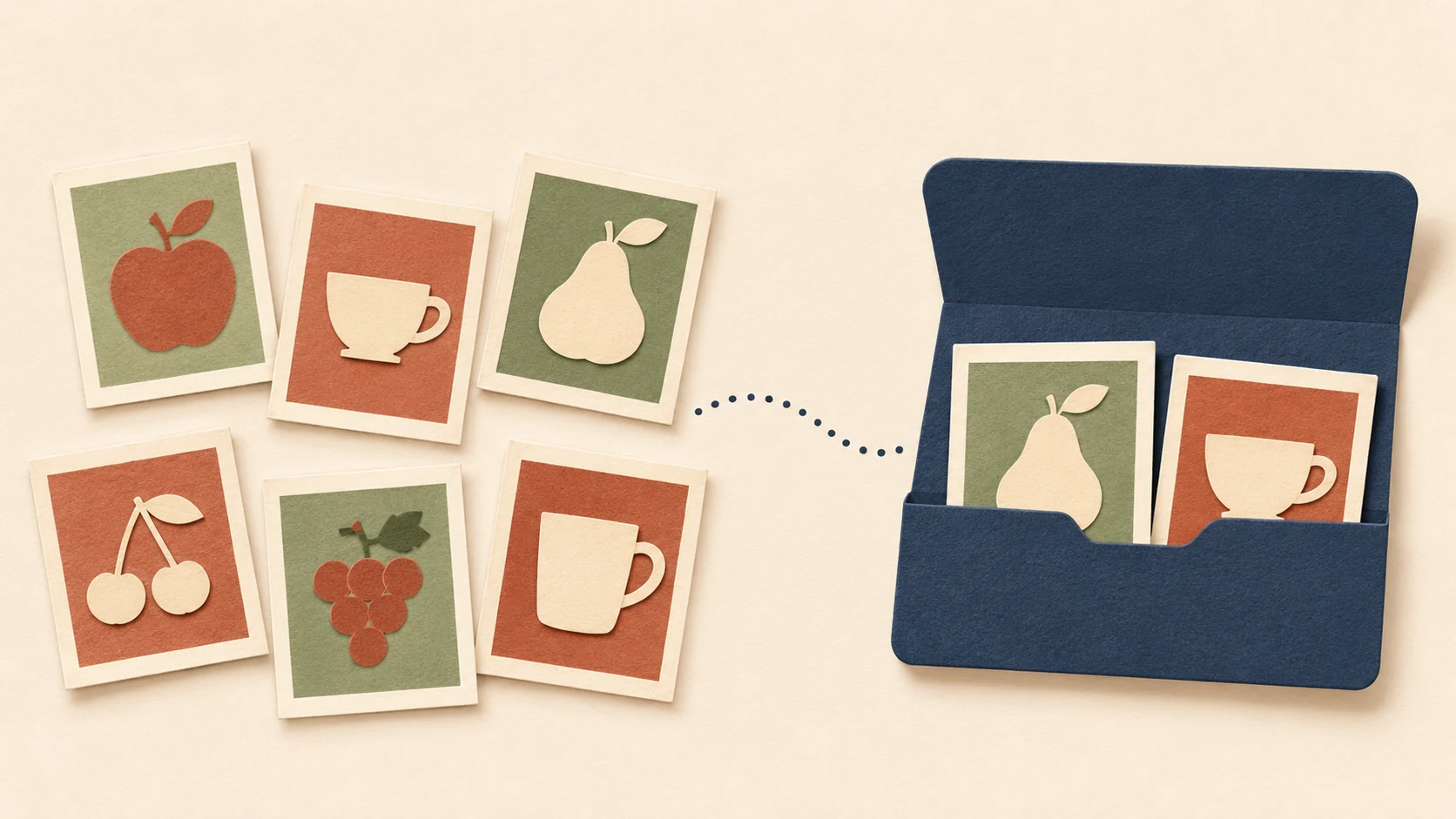
Use a personal album for this working list. Do not confuse it with Shared Albums, a separate sharing feature in Apple’s guide.[1] Choosing editing candidates does not require inviting other people or giving anyone access to your account.
For reference, the Apple iPhone guide checked for this article places album creation under Collections, then Albums, using the add button and New Album. You name the album, add photographs, choose a key photo to represent it, and create it.[1] These are documentation-based directions, not a hands-on device test; the layout and labels can differ with your iOS version and language. Match the guide to your own iPhone version before following the steps.
Add candidates according to your original purpose, then reopen the album as a focused set. A key photo can make the album easier to recognise. It does not mean every image inside has been approved for editing, and an album name does not automatically explain what each photograph needs.
If two pictures are still competing, keep both temporarily and note the difference. One may have a better expression, while the other leaves useful room for text. A short reason is more helpful than adding more candidates without deciding what they contribute.
Tidy the shortlist without mistaking it for a backup
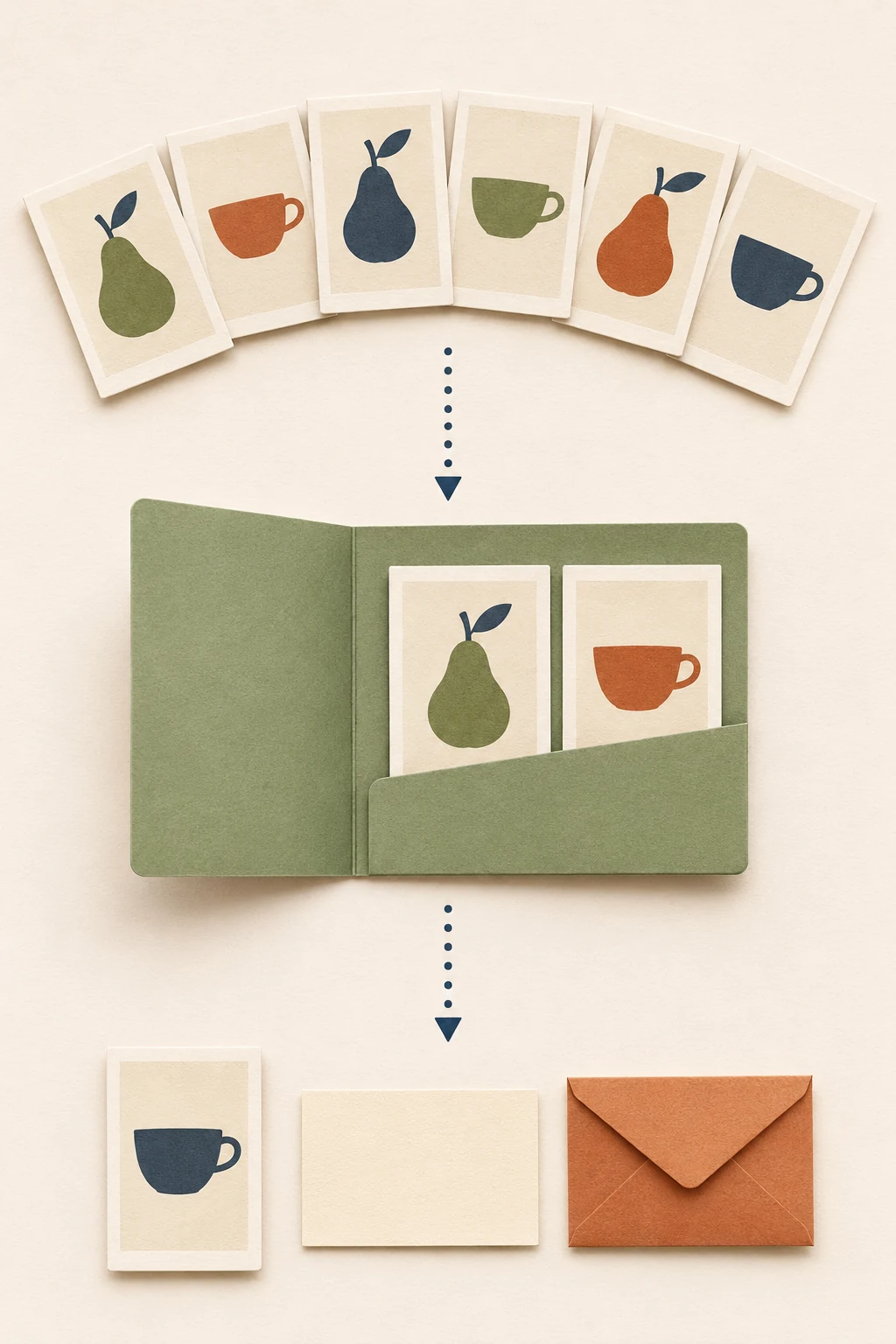
Apple says that using Delete Album leaves the photos and videos in your photo library and in any other albums containing them.[1] Do not apply that rule to every delete command. Removing an album container and deleting an item from the library are different actions. Read the action’s name before confirming it.
With iCloud Photos, albums are available on devices signed in to the same Apple Account. Photo changes also sync between devices, including photo deletions.[1][2] An extra album is therefore not an independent backup. Apple explains that photographs in iCloud Photos are not duplicated in iCloud Backup and recommends keeping backup copies of your library.[2] Do not delete photographs to free space simply because you have put them in a shortlist.
Keep three things separate: the library is your collection, an album is a working group, and a shared file is something you actually send. The accompanying illustration is an organisational analogy, not a physical-storage diagram or proof that a file has been delivered. After choosing your images, decide which files to share and check the files and accompanying information.
Before asking for editing help, write down the intended use and what must remain unchanged. For example: “These three photos are for a catalogue; keep the cup’s colour faithful, but tidy the background.” If they need careful retouching or colour correction, bring that selection and brief to SCI Magie.[3] The album helps you choose; a useful consultation still needs the photographs and clear instructions, not access to your iCloud account.
AI-generated concept illustration; not an event photograph or customer result.
References
[1] Apple: Albums · [2] Apple: iCloud Photos · [3] SCI Magie. Powered by Shaniba Creative Industry.