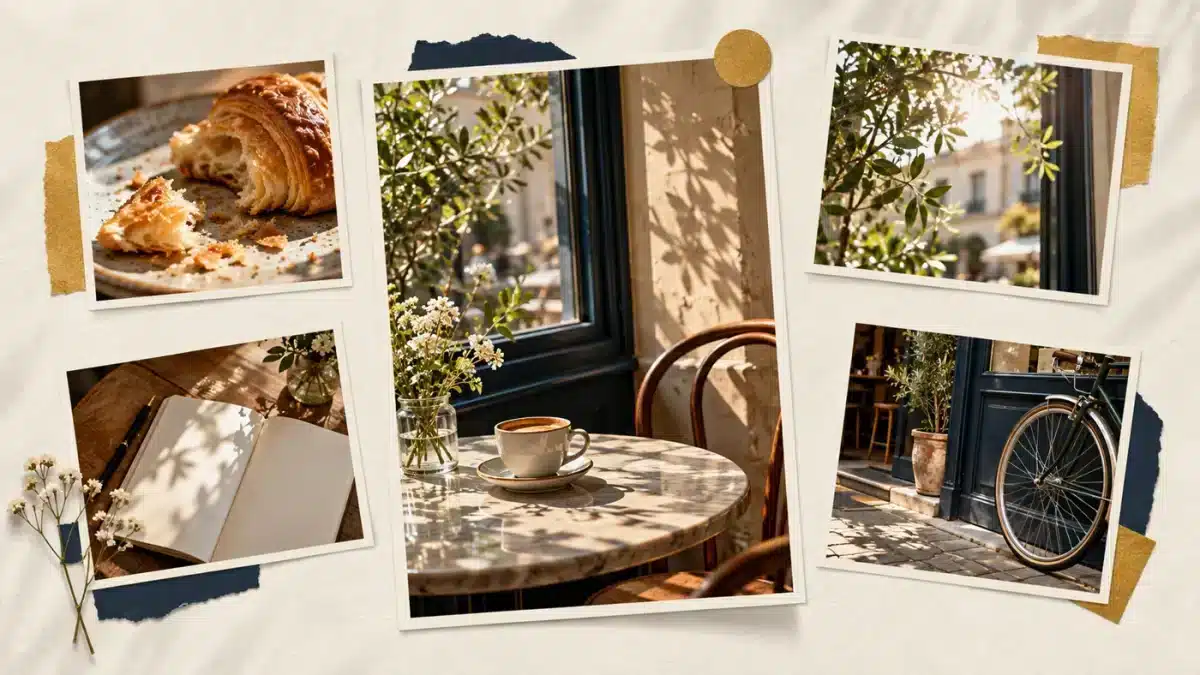
Does your Canva photo dump collage feel crowded even after you have carefully chosen the photographs? The problem may not be a lack of templates. When every image competes for attention, the main moment gets lost, important details are cropped out, and captions shrink just to fit.
Choose the story and only the photos it needs
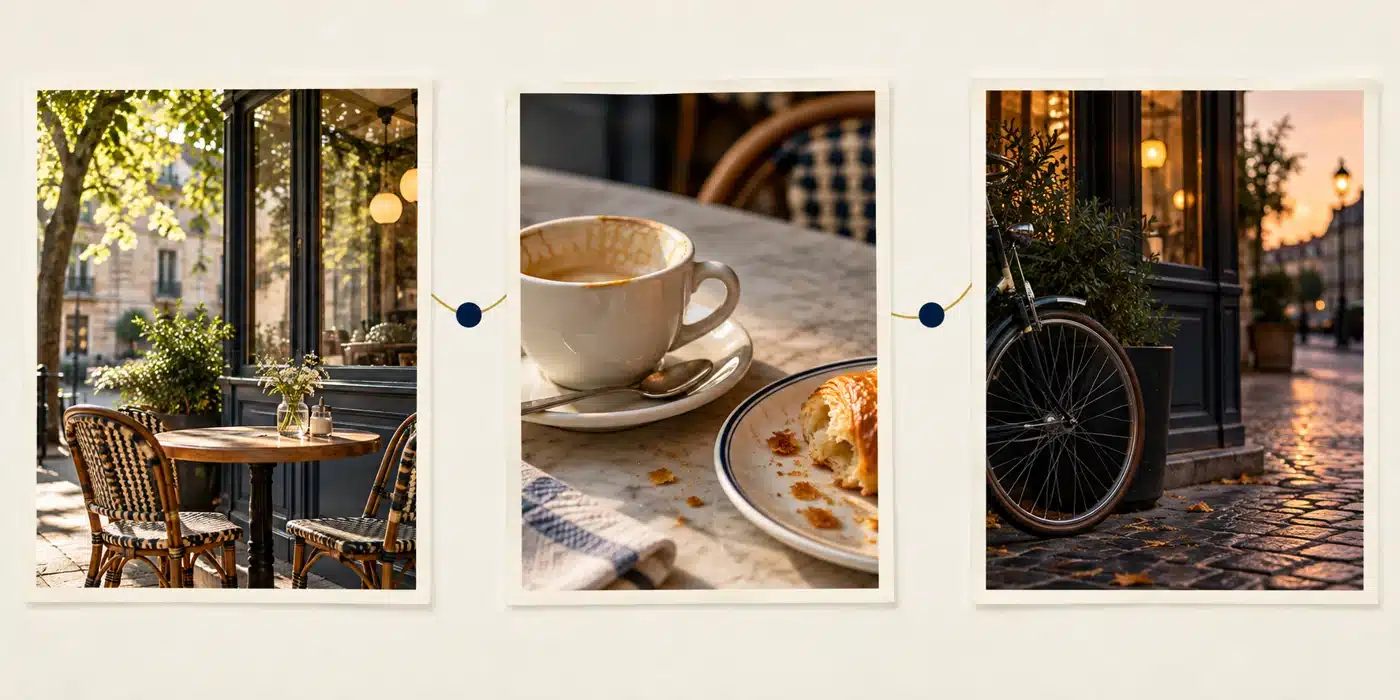
Imagine you want to sum up an afternoon at a cafe. A room view sets the scene, a cup detail brings the viewer closer, and a bicycle by the door provides an ending. Beginning–detail–ending is one useful way to choose images, not a compulsory formula. You could also build a collage around colour, mood, or the stages of making a product. What matters is having a reason for the pictures to belong together.
Choose one lead photograph as an entry point. Let the others support it through detail, another viewpoint, or a change in mood. They do not all need equal space. Give more room to an image that needs context, while a detail can work as a small accent. Try looking at the arrangement without reading its caption. Can someone still understand the story?
Use grids and crops without losing important details

Canva documents searching for “Photo Collage”, choosing a template, uploading your own photographs, and arranging them with frames and grids.[1] A grid gives images an organised set of spaces; a frame holds an image within a particular shape. Choose a structure that supports your photographs rather than the busiest template.
Once photographs are in place, inspect each crop: the part of the original image that remains visible. Faces, product labels, packaging text, and clues to a location can disappear when a photograph is fitted into a different shape. For product images, retain what buyers need to recognise the item. For travel memories, consider whether the background still provides context or whether the crop has become confusing.
Check access or payment labels on assets and features before using them. Canva’s page distinguishes free and premium assets and identifies the background remover as a Canva Pro feature.[1] Do not assume every element in a template is free just because the collage-maker page opens. Menus can also vary with device and version.
Check small text, image permissions, and the final file
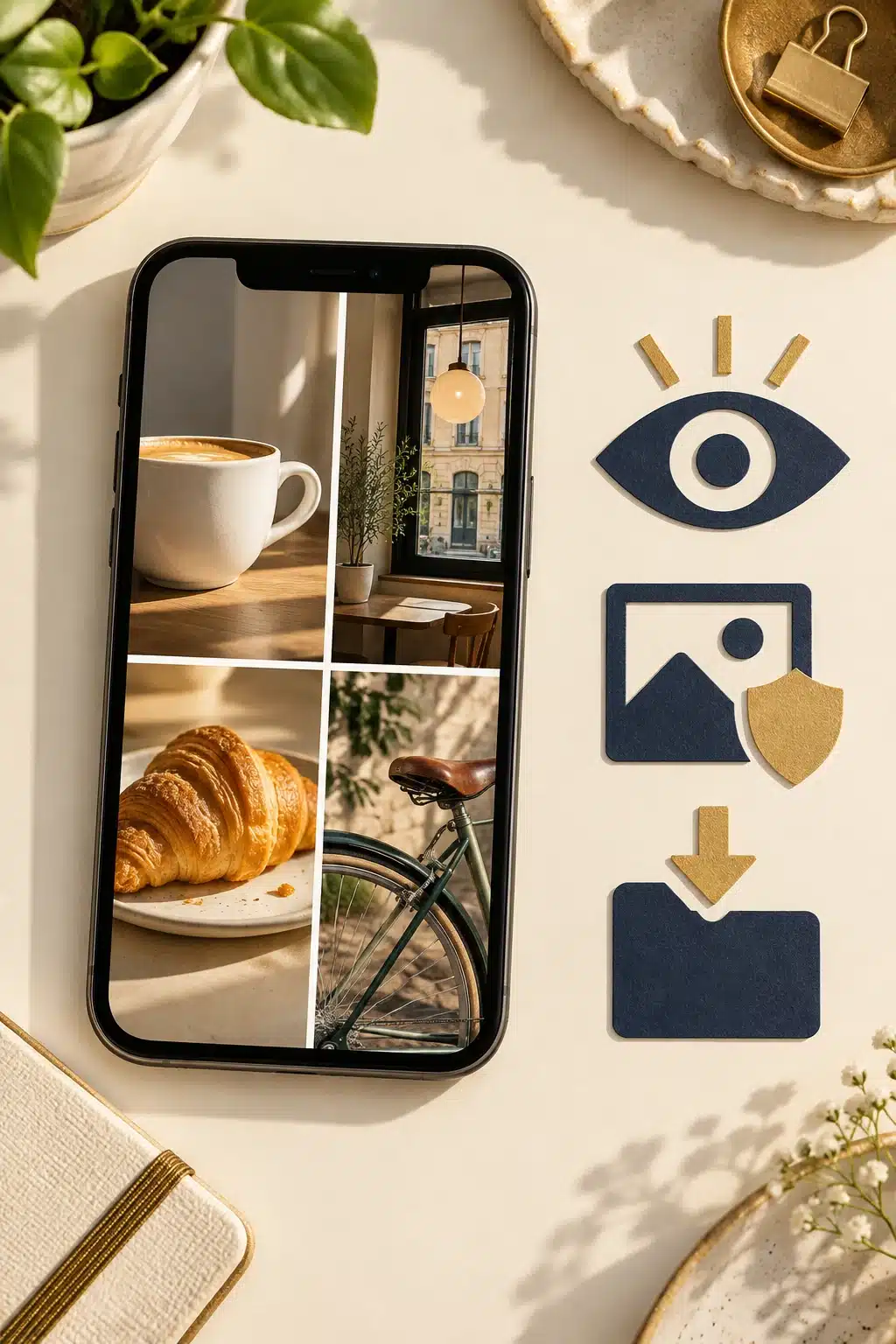
Shrink the preview to something close to its size on a phone. Is the lead photograph still clear? Has a caption become a thin line? If you need to zoom in to understand a short sentence, remove some text or give it more room. Put important information in a quiet area rather than placing letters over a busy photographic texture.
W3C explains why text needs sufficient contrast against its background.[2] Avoid thin, pale lettering over bright photos; a plain text background can help. This visual check is not accessibility certification. Repeat essential image information in accompanying text, and add alternative text where supported.
Make sure you have the right to use every photograph and design element. An image posted on someone else’s account is not automatically free to reuse. Obtain appropriate permission before showing people in a private context, and inspect addresses, tickets, or other visible personal information. Read the asset licence for your intended use. Keep the original files separately so that you can return to them if a crop needs to change.
Canva lists PNG and JPG as options for saving a collage.[1] Choose a format that suits the intended use, then open the downloaded file rather than judging only the editor canvas. Check details, text, image edges, and the visual sequence again. Avoid repeatedly exporting from an already compressed file when the project and original photographs are still available.
If distractions or uneven colour in the source photographs are holding the layout back, explore retouching help at SCI Magie. Explain which details need to stay and how you plan to use the photographs. Better photos that still feel authentic. Powered by Shaniba Creative Industry.
AI-generated concept illustrations; not event photographs, customer results, or Canva screenshots.
References
[1] Canva: Photo collage maker · [2] W3C: Contrast (Minimum)