
The photo has almost everything you wanted: a warm atmosphere, your friends together, and a composition worth keeping. But in the main image, someone’s hand covers a face, or your expression is caught halfway through a smile. Before asking anyone to change a face, check whether a more suitable moment is already there.
Choosing an iPhone Live Photo key frame means selecting a different main image from the same Live Photo.[1] Apple’s name for that main image is the key photo.[1] The aim isn’t to redraw a smile. It’s to find a recorded moment that tells the story more clearly, then decide whether any retouching is still needed.
Look for a moment that actually exists in the capture
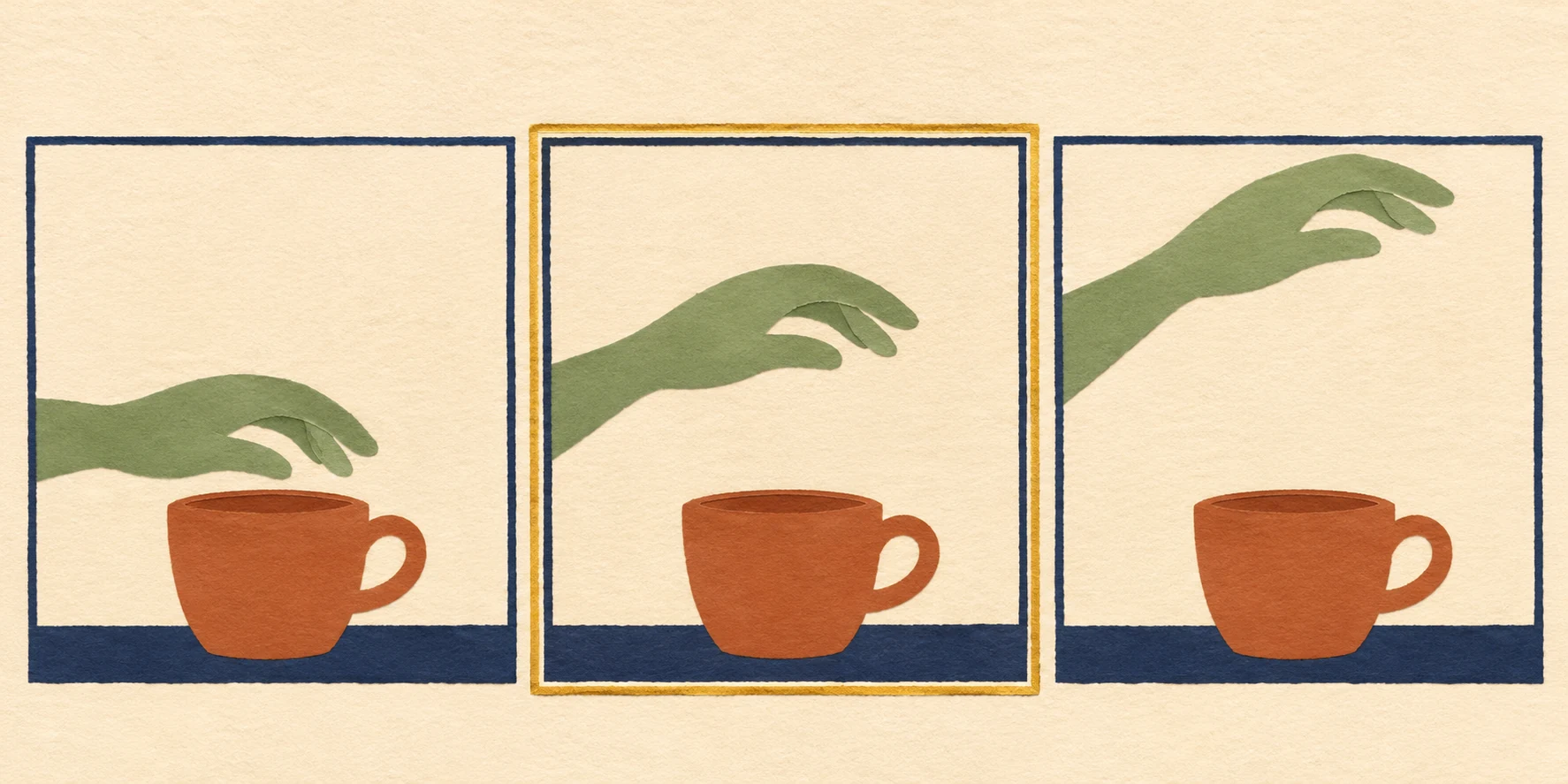
Apple says a Live Photo records what happens 1.5 seconds before and after you take a picture.[2] You are looking through a short stretch of one capture, not an unlimited recording of the event. That distinction helps set a sensible expectation before you start searching.
Open the Live Photo in Photos and press and hold the screen to play it.[2] Watch for changes that matter to your picture: a hand moving away from a face, a glance toward a friend, or an object coming into view. For a photo of a creative activity, the moment someone holds up their work may say more than a formal look at the camera.
Use three questions to narrow your choice:
- Does the expression feel natural for this person and this situation?
- Do the hands and objects help tell the story rather than obscure it?
- Does the moment work as a still picture, not just as part of a moving sequence?
Make sure you still have a Live Photo to work with. Apple’s key-photo instructions apply to Live Photos, not ordinary still images.[1] If the only file available is a regular JPEG, don’t expect these controls to reveal a hidden sequence. Look for the source Live Photo if you still have it.
If none of the available moments works, that is a reasonable stopping point. Choosing a frame doesn’t guarantee open eyes, a sharp subject, or everyone facing the camera. You can keep the original key photo, choose another picture, or take a new photo if the situation allows. A different source can be a better answer than a more ambitious edit.
Choose a key photo without confusing it with trim or Live Off

Apple documents the following sequence in Photos. The control names here follow its English-language guidance; labels and layout on your phone may differ with your language and iOS version.[1][2]
- Open Photos, then open the Live Photo you want to review.
- Tap Edit.
- Tap the Live Photo button to open the frame controls.
- Move the white frame in the frame viewer to your chosen moment.
- Tap Make Key Photo, then Done.[1][2]
Three related controls do different jobs:
- Choose a key photo: select the main image using the white frame and Make Key Photo.[1]
- Trim: drag either end of the frame viewer to choose which frames play. This changes the playback range.[1]
- Turn Live off: in the editing controls, turning off Live makes the Live Photo a still of its key photo. Apple’s effects menu separately describes Live Off as turning off Live video playback or the applied effect.[1]
Check sharpness and effect changes before continuing

Compare the important areas at a similar magnification. Start with eyes and facial edges, then check hands, lettering on an object, or whatever carries the story. A more appealing expression is only part of the decision; the rest of the frame still needs to work.
There is a specific trade-off for some portraits: Apple states that Live Photos taken on an iPhone 15 model or later with a portrait effect lose the portrait effect if you change the key photo.[1] This is a condition-specific warning. It does not mean every Live Photo has a portrait effect or that every iPhone model behaves identically.
Review the image again if you take it into another app. Apple also warns that editing a Live Photo in a third-party app might remove Live Photo effects you have applied.[2] Check the result rather than assuming every effect will survive the next stage of editing.
If the chosen picture still needs careful attention, tell SCI Magie, Powered by Shaniba Creative Industry, how you want to use it and what must remain unchanged. Start with the recorded moment you actually want, then discuss the finishing work—not a promise to create an event the camera never captured.
AI-generated concept illustration; not an event photograph or customer result.
References
[1] Apple: Edit Live Photos on iPhone · [2] Apple: Take and edit Live Photos. Powered by Shaniba Creative Industry.