
Your craft photo is nearly ready, but a small card beside the product needs careful handling. You want the background tidied while the wording on that card stays untouched. Typing the words into your editing instructions can help, provided a missing letter or stray punctuation mark does not create a different reference.
iPhone Live Text offers a way to copy photographed text into a separate editing brief: a note explaining what you want changed and what should stay. Apple says copied text can be pasted into another app.[1] Treat it as a starting point to check against the photograph, not a replacement for looking at it. Copying words does not change the lettering within the image.
The visuals in this article are AI-generated concepts, not screenshots, OCR results, or customer results.
Separate reference text from the requested change

Start with the purpose of the photograph. Imagine a handmade object on a table, with a card reading “CLAY STUDIO” beside it. You want a cleaner background but the same card and wording. This is a fictional example using simple English text, not a customer photograph. The background adjustment and the lettering you want preserved are separate parts of the request.
Make that distinction explicit in the brief. For example: “Change: tidy the distracting objects behind the product. Keep: the wording CLAY STUDIO on the card to the right.” A quotation alone leaves too much open to interpretation. An editor needs to know whether it describes something to preserve or supplies replacement wording you are asking them to add.
Give the text a location, too. A photograph might contain a front-facing card, a packaging sticker, and lettering on a background prop. “Top line of the card to the right of the product” is more useful than “this text.” If a visual pointer would help, mark a separate reference copy and retain an unmarked original for editing.
A text note cannot describe every visual detail. It can record capital letters, but the letter shapes, spacing, card angle, and paper texture still need to be seen in the photograph. Do not treat a pasted quotation as a complete specification of the label’s appearance.
If you actually need wording changed, make that a separate request and confirm you have the right to alter it. A copied reference is not automatic permission to modify a label or important information. For this workflow, its job is to identify a detail accurately, not quietly turn a preservation request into a replacement task.
iPhone Live Text: Copy what you need, not every detail
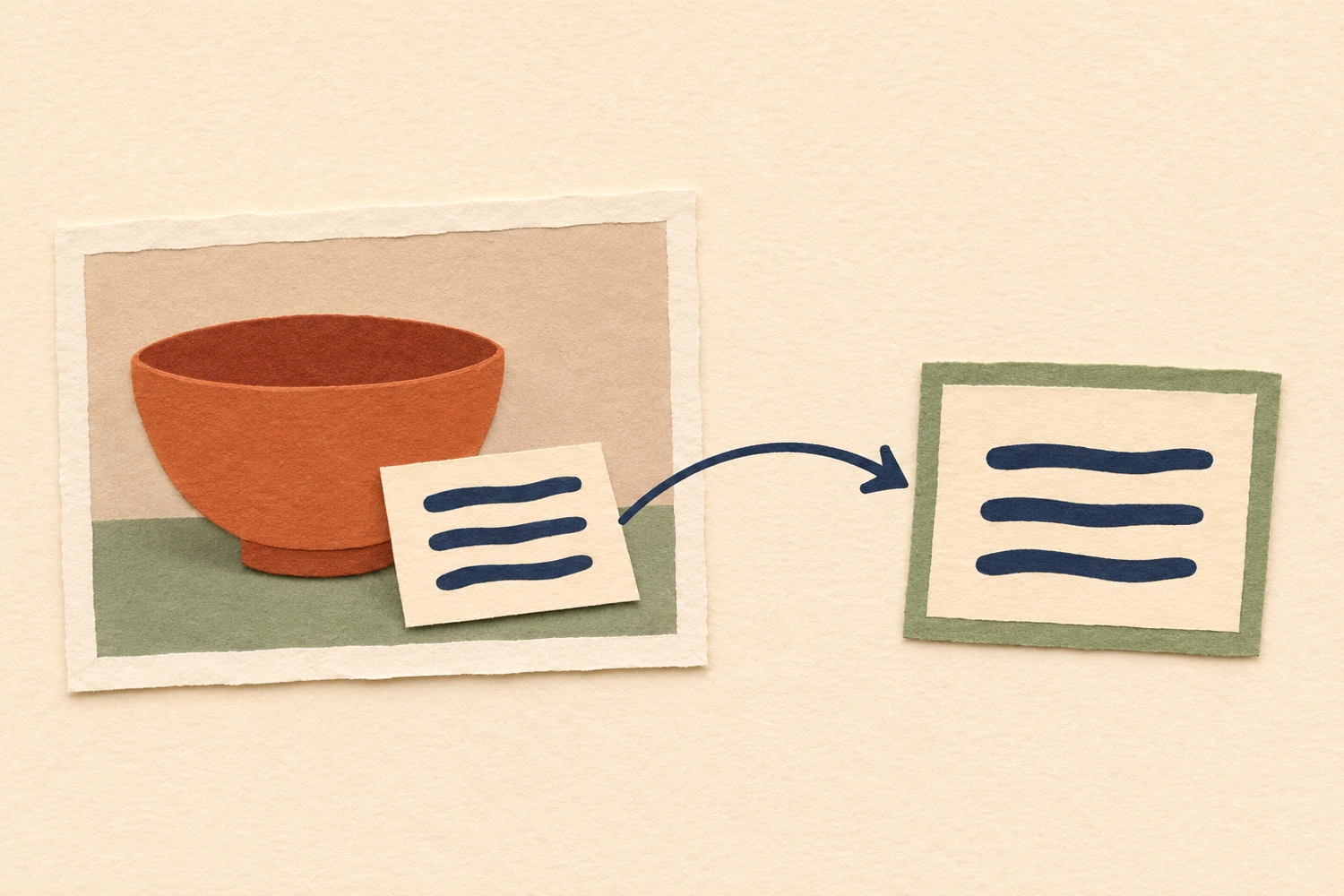
Apple lists iPhone XS, iPhone XR, or later with iOS 15 or later as the requirements for Live Text.[1] A compatible device does not mean every piece of lettering will be recognized. Apple also links to supported languages and regions. Do not assume universal language support; the simple English example here is not a promise of Indonesian recognition or equal results across scripts.
For a saved photograph, Apple documents this route:[1]
- Open Photos and select the photograph containing your reference text.
- Touch and hold a word, then move the grab points to adjust the selection.
- Tap Copy, then paste the result into another app where you are writing the brief.
Photos and Copy are the English names used in Apple’s documentation. Match the controls to your device’s language and system version. Select only the line you need rather than collecting everything in the picture. In the card example, “CLAY STUDIO” is enough; unrelated writing elsewhere on the table adds nothing useful.
After pasting, label the quotation “Reference wording in the photo.” Put the editing request in a separate sentence. That separation is practical advice for writing instructions, not something Live Text automatically does. Copied text does not tell an editor which parts you consider editable and which must remain unchanged.
Keep unrelated private information out of the note. Account numbers, home addresses, customer contact details, and order identifiers do not belong in a public example or a broadly shared brief. Select the minimum relevant text rather than copying everything and expecting someone else to filter it. Review what you pasted before sending it on.
If a word cannot be selected or the copied result makes little sense, stop relying on that transcription. Type the clearly readable portion manually and mark the rest as uncertain. Do not fill in letters hidden by glare just to produce a complete sentence. A clearer source photograph is more useful than a confident-looking guess.
Match the text to the photo before sending

Compare the photograph and note in small sections, working from the first word to the last. Do not merely ask whether the sentence sounds plausible. A phrase can read naturally while containing a different letter from the one on the card. You are checking agreement with the image, not polishing the writing.
Give names, numbers, sizes, and units a character-by-character check. A zero and a capital O, for instance, deserve attention when their shapes are hard to distinguish. Check punctuation, capitalization, and which line you meant to quote. These are practical proofreading habits, not a claim that a particular device will make those exact mistakes.
Avoid silently correcting unusual spelling in the quotation. If the card itself uses an unexpected spelling, preserve it as a reference or flag it for confirmation. Otherwise, your supposedly faithful note becomes a new version of the wording, leaving the editor unsure which one you actually want to keep.
Distinguish between text you have matched, text you can read only partly, and text you cannot establish. “First line checked; the end of the second line is hidden by glare” is more helpful than an unexplained question mark. Locate the uncertainty and leave it unresolved rather than asking someone to treat a guess as fact.
Finally, read the brief without relying on earlier messages. Can another person locate the correct card? Is it clear that the background may change while the lettering stays? Send the matching source photograph, not several quotations with no indication of where they belong. A short, specific note is easier to act on than a long transcription without context.
If the area around the lettering still needs careful work, tell SCI Magie how you want to use the photo and what must stay unchanged. SCI Magie is Powered by Shaniba Creative Industry; bring your checked reference and identify any unreadable portion rather than assuming missing lettering can be recovered.
Reference: [1] Apple — Copy and translate text from photos on your iPhone or iPad.