You have picked a graduation photograph for a frame and want a larger print. The file information includes a resolution value you can change. Raising that number sounds like a way to make faces and hair more detailed. But changing the number alone does not add detail to the photograph.
Understanding photo PPI for print starts with separating three things: the pixels available in your file, how densely those pixels are placed on paper, and the physical size of the print. They are connected, but they describe different properties. Keeping them separate helps you give an editor or print provider a clearer brief instead of expecting one resolution setting to solve every limitation.
Look at pixel dimensions before chasing a PPI number
The photographic visuals are AI-generated concepts, not test prints or customer work. The diagrams explain relationships rather than show a print scale.
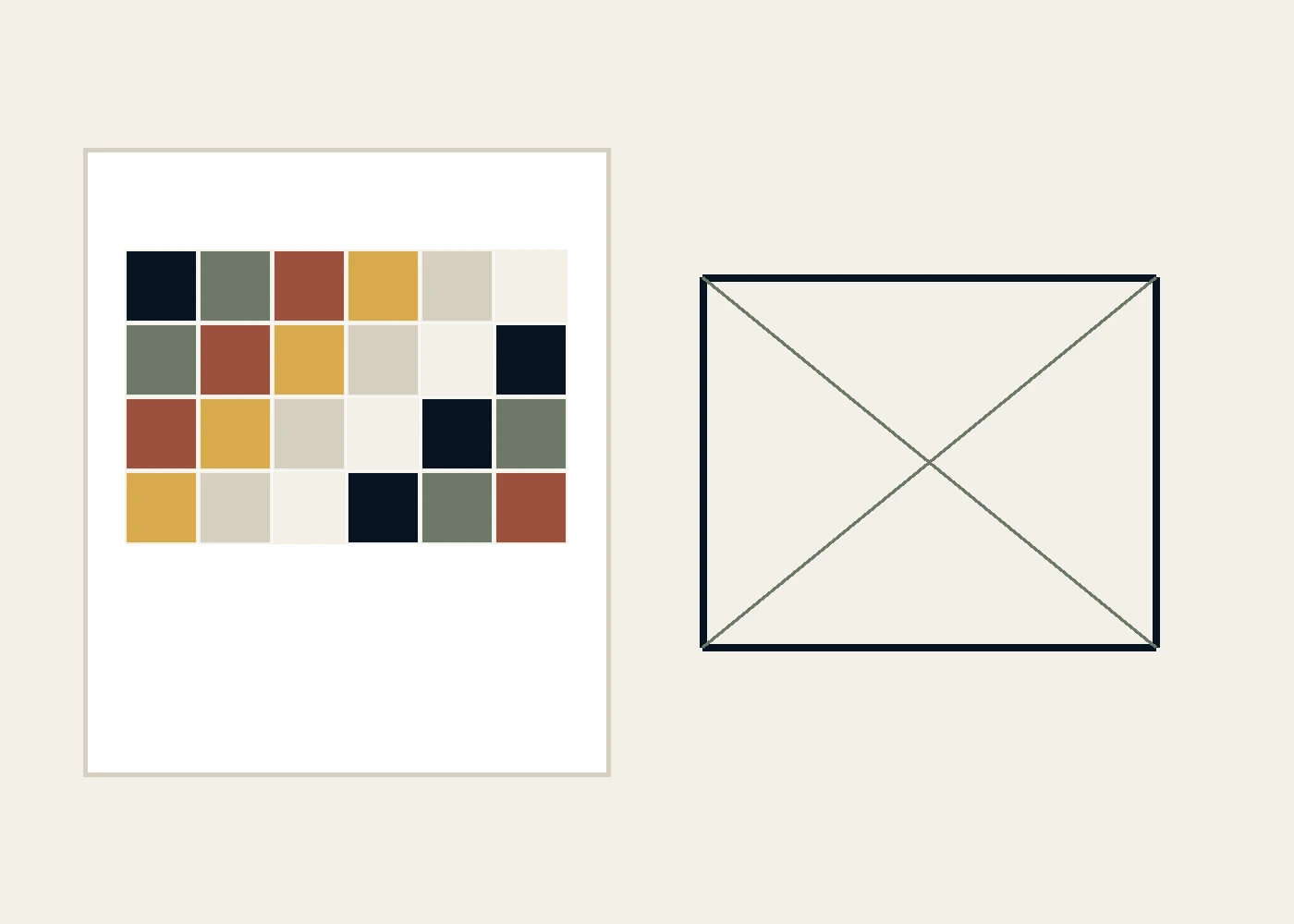
Start with the actual file you intend to print. Pixel dimensions describe the number of pixels across its width and height. Pixels are the elements that make up a digital image. PPI, short for pixels per inch, describes how many image pixels are assigned to each inch of a print. Adobe explains this distinction in its printed image resolution guide.
Pixel dimensions describe the available pixels; PPI describes their density on paper. Physical print dimensions describe the picture’s width and height. A PPI value alone cannot tell you what a file contains.
Consider a hypothetical file measuring 3000 × 2400 pixels. At 300 PPI, its mathematical print dimensions are 10 × 8 inches. At 150 PPI, the same pixel dimensions map to 20 × 16 inches. The calculation is physical size in inches = pixel dimension ÷ PPI. Apply it separately to the width and height.
Neither density is a recommendation here. The example simply shows the relationship: with the pixel count unchanged, spreading those pixels over a larger area produces a larger physical image. This arithmetic does not measure the sharpness of a face, the detail in clothing, or the quality of a finished print.
Check which version of the photograph you have, too. An original, a copy received through messaging, and an edited export may have different pixel dimensions. Do not judge the file by a name containing “HD” or by how convincing it looks on your phone. Inspect the file you will actually send, not another version you remember having.
If you crop the image, use the dimensions after cropping. Cropping removes areas outside your chosen composition, leaving those pixels out of the finished picture. A calculation based on the entire original may therefore no longer describe your final file. Decide what must remain in the frame before assessing the print dimensions.
Separate density settings from resampling
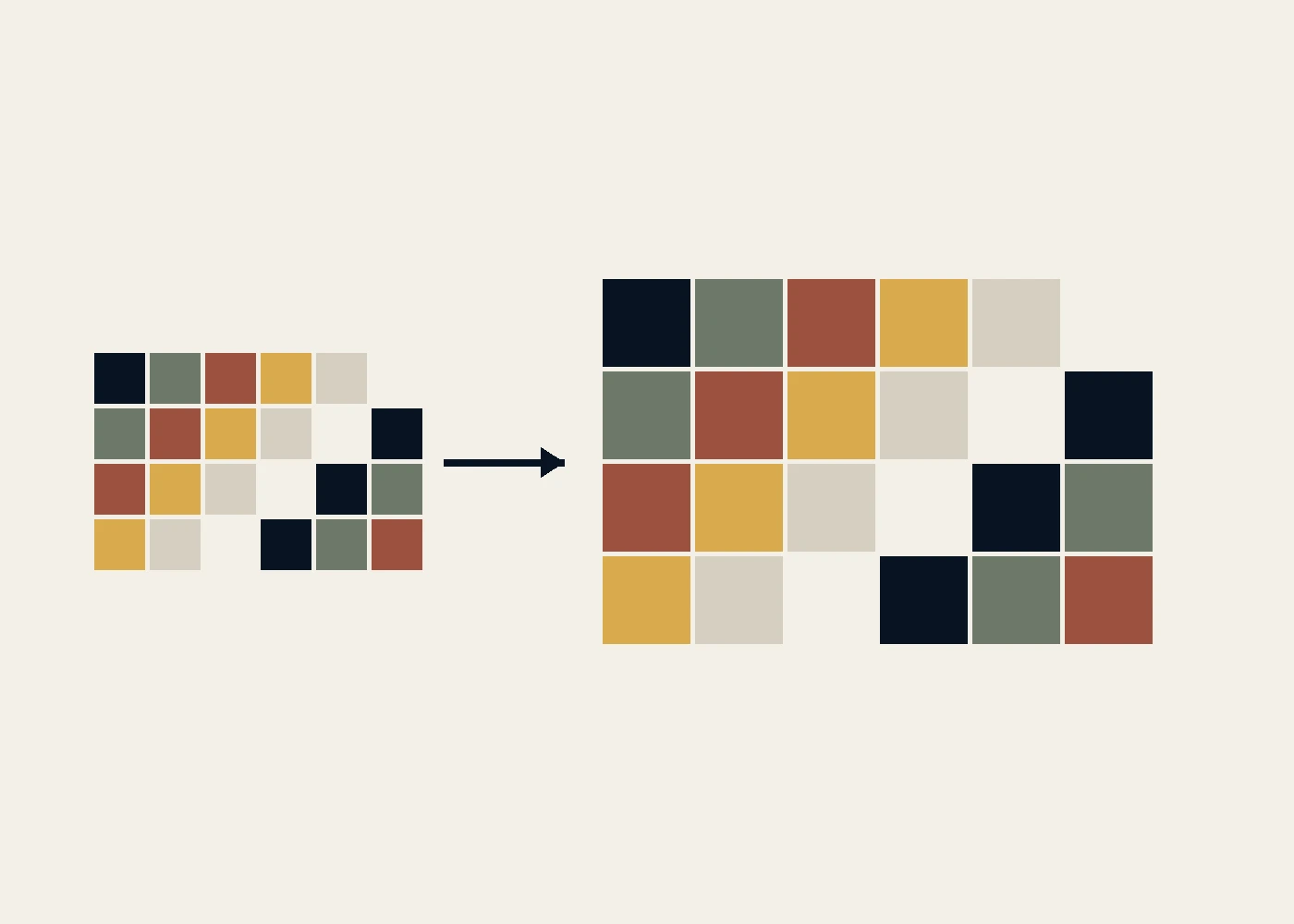
Changing density without changing the pixel count does not enrich the picture. Adobe explains that total image data remains constant when dimensions or resolution are adjusted without resampling. Increasing resolution reduces physical width and height proportionally; lowering resolution increases them. Its resolution guide describes this relationship.
Return to the hypothetical file. If it remains 3000 × 2400 pixels, changing the mapping from 150 to 300 PPI does not reveal hair that was never recorded. The same pixels occupy a smaller physical area. You have changed the relationship between the data and the print size, not the contents of the scene.
Resampling is different because it changes the number of pixels in the image. Adobe states that resampling is required to change that number. If you request a particular physical size and density together, check whether the application also changes the pixel dimensions. Do not assume that every adjustment involving resolution only changes how the existing pixels are assigned to paper.
Three questions make the distinction easier to follow:
- Do the width and height in pixels stay the same, or do they change?
- Does the physical print size change when you adjust PPI?
- Is resampling involved, adding or removing pixels?
An increase in pixel count is not proof that original detail has been recovered. That matters for faces, small lettering, and fabric patterns: a more filled-in appearance does not establish that previously missing factual information is now present. The dimensions of an enlarged file should not be your only reason for calling it more accurate.
Keep the source file and make adjustments on a copy, so you can compare the original, cropped, and print-ready versions and track what changed.
Bring the intended size to your editor and print provider
Before ordering, decide on the physical size you want and what must not be cropped out. A framed graduation portrait may need space above the head and room for hands. A product photograph may need the entire label. Discuss these composition needs before someone trims the image to match the print area.
Send the best available file with the intended dimensions and ask the print provider for its requirements. Explain whether your requested size refers to the picture itself or the sheet of paper. Ask whether the composition still needs adjusting and who will handle that work. These questions help prevent you and the provider from imagining different finished products.
Do not treat one PPI value as mandatory for every use. Image PPI is also not the same thing as printer DPI. If a provider mentions a resolution figure, clarify whether it describes the image file requirement rather than assuming it is interchangeable with a printer specification.
For an important order, ask whether file review or a sample print is available before final production. That is a question for the provider, not a service every business necessarily offers. Assess the details that matter at the intended size; pixel-to-inch arithmetic alone cannot tell you how the physical result will look.
If the photograph needs retouching or restoration, tell SCI Magie how you want to use it and what must stay unchanged. Editing decisions are separate from meeting a print provider’s requirements and placing a print order. Know your file, decide on the size, and agree on the next steps with the right people. Powered by Shaniba Creative Industry.
References: Adobe — Printed image resolution.