To remove iPhone photo location data before sending a picture for editing, start by checking what the picture carries. An ordinary desk photograph can include information about where it was taken, beyond anything you can see in the image. Before you tap Send, separate two questions: what location information accompanies the photo, and what clues are visible inside it?
You do not need to share your home address to explain that a photograph looks too yellow. Select the material you actually need, then choose the appropriate setting. Removing a photo’s location, leaving location out of a share, and preventing future collection do different jobs.
Separate photo location metadata from visible clues

Metadata is additional information associated with a photograph, not necessarily something written across the image. Apple explains that when Camera has access to Location Services, the coordinates where a photo or video was taken can be embedded in it. Someone receiving a file that includes location metadata may be able to access that information.
To review a photo on iPhone or iPad, open it in Photos, then swipe up or tap Info. Look at the location information shown. Start with the picture you intend to send rather than an unrelated album. You can make this first check on your own device without uploading private photographs to an online metadata checker.
Next, look at the image itself. Does it show a parcel label, house number, sign, or reflection revealing something you would rather not share? This is a separate visual check. Removing coordinates does not automatically change the writing on a package or the view behind your subject.
For example, a product photograph beside a window could present two different issues: location information in the file and an address on a shipping box. Addressing the first does not fix the second. Choose another picture or prepare a copy that conceals unnecessary details while preserving what matters for the intended edit.
Remove iPhone photo location or leave it out when sharing
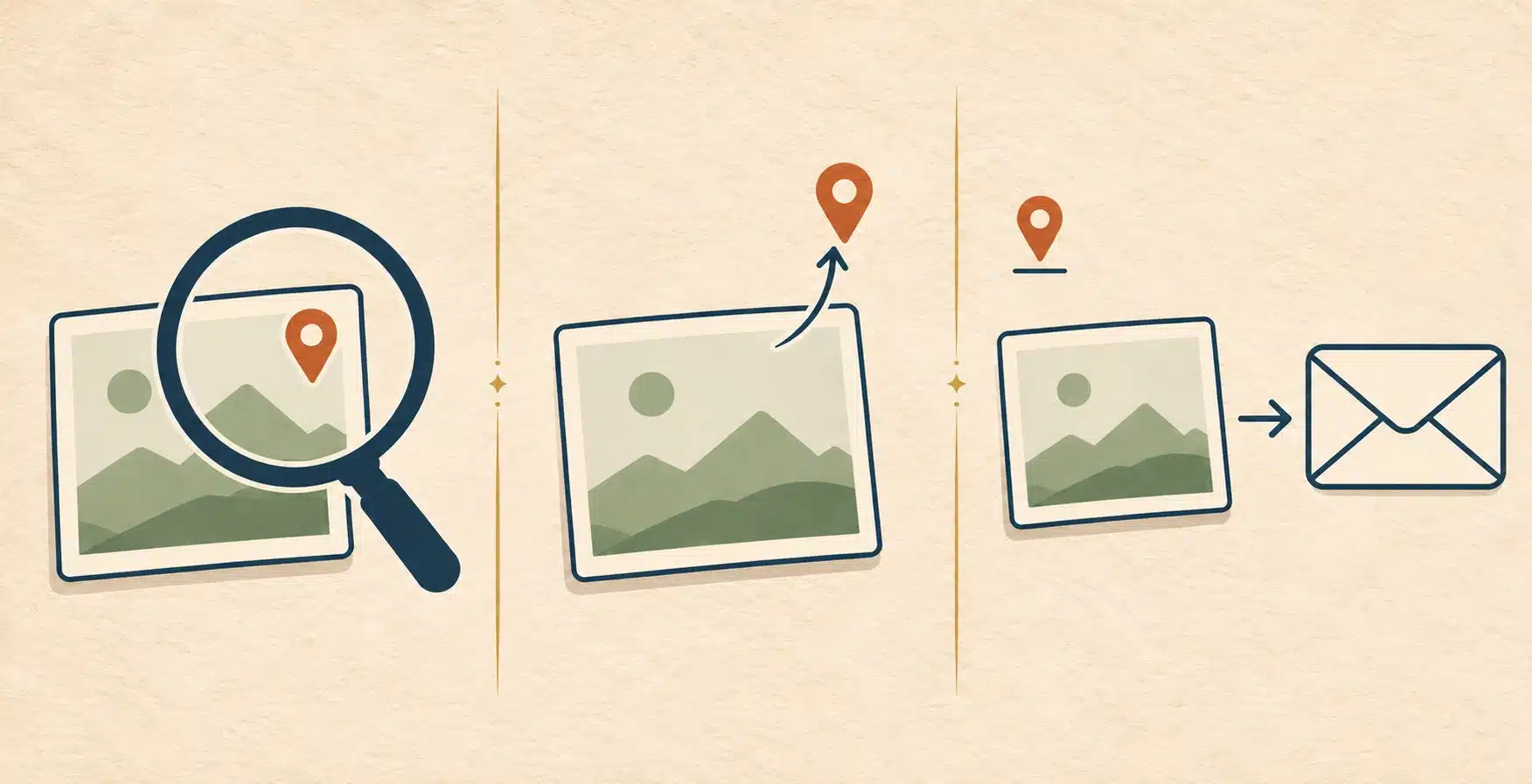
To remove the location associated with a particular photo in Photos, Apple’s current guide directs you to open the picture, tap More, then choose Adjust Info → Adjust Location → No Location. This changes the location associated with the selected photo; it is different from choosing an option for a single share. Menu wording can vary with device language and software version, so use the linked Apple guide to check the route.
If you only want to share without location, select one or more pictures in Photos, tap Share, then Options. Turn off Location. Apple says Location Not Included appears above the Options button. You can then choose one of the sharing methods offered in the Share Sheet.
The practical distinction is that No Location addresses the location associated with the photo, while Location off in sharing Options controls whether location accompanies that share. Changing the sharing option is not the same as cleaning an entire older library. Equally, you need not change lots of photographs when the task is just one share without location.
Before sending, check the selected pictures again and look for Location Not Included. If you move to another app or transfer method, review its options rather than assuming every route handles metadata identically. These settings also do not recall copies that someone has already received.
Limit future collection and choose what you need to send

To stop Camera collecting location metadata for future photographs and videos, follow Apple’s route: Settings → Privacy & Security → Location Services → Camera → Never. This limits Camera’s access to location going forward. It is not a command to remove location information from every photograph you already have.
Treat these as separate tasks: change Camera permission if you do not need new location recording, then review older pictures you plan to share. A check that shows no location is not a guarantee of anonymity. Visible details, conversational context, and previously shared copies still deserve attention.
When you send photos for editing, include the file and context that help explain the work: what should change, which colours should stay, and where the finished image will be used. A home location or daily routine usually does not explain a lighting correction. Send a purposeful selection rather than a whole album and expect an editor to guess your intention.
When consulting SCI Magie, you can explain your editing goal without adding irrelevant location information. If a sensitive detail needs concealing, identify the area and the result you want clearly. The useful habit is not finding a button that promises complete safety; it is understanding what you share, who receives it, and why they need it.
AI-generated concept illustration; not an event photograph or customer result.
References
Apple: Manage location metadata in Photos · SCI Magie. Powered by Shaniba Creative Industry.