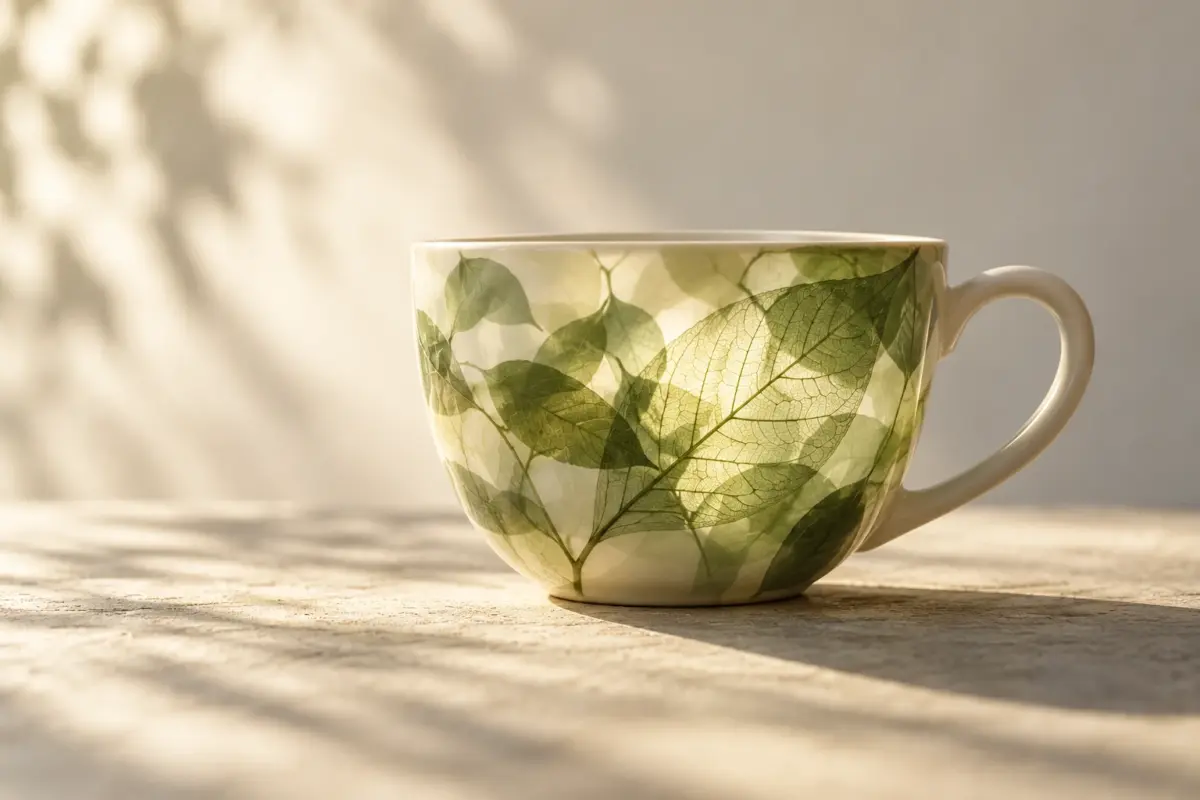
Two favorite photos do not automatically make one clear image. A simple cup can lose its shape beneath a dense layer of leaves. When planning a Snapseed Double Exposure, start with the idea you want to communicate: do the pictures genuinely support each other, or do they simply look attractive on their own?
Write one idea before choosing two photos
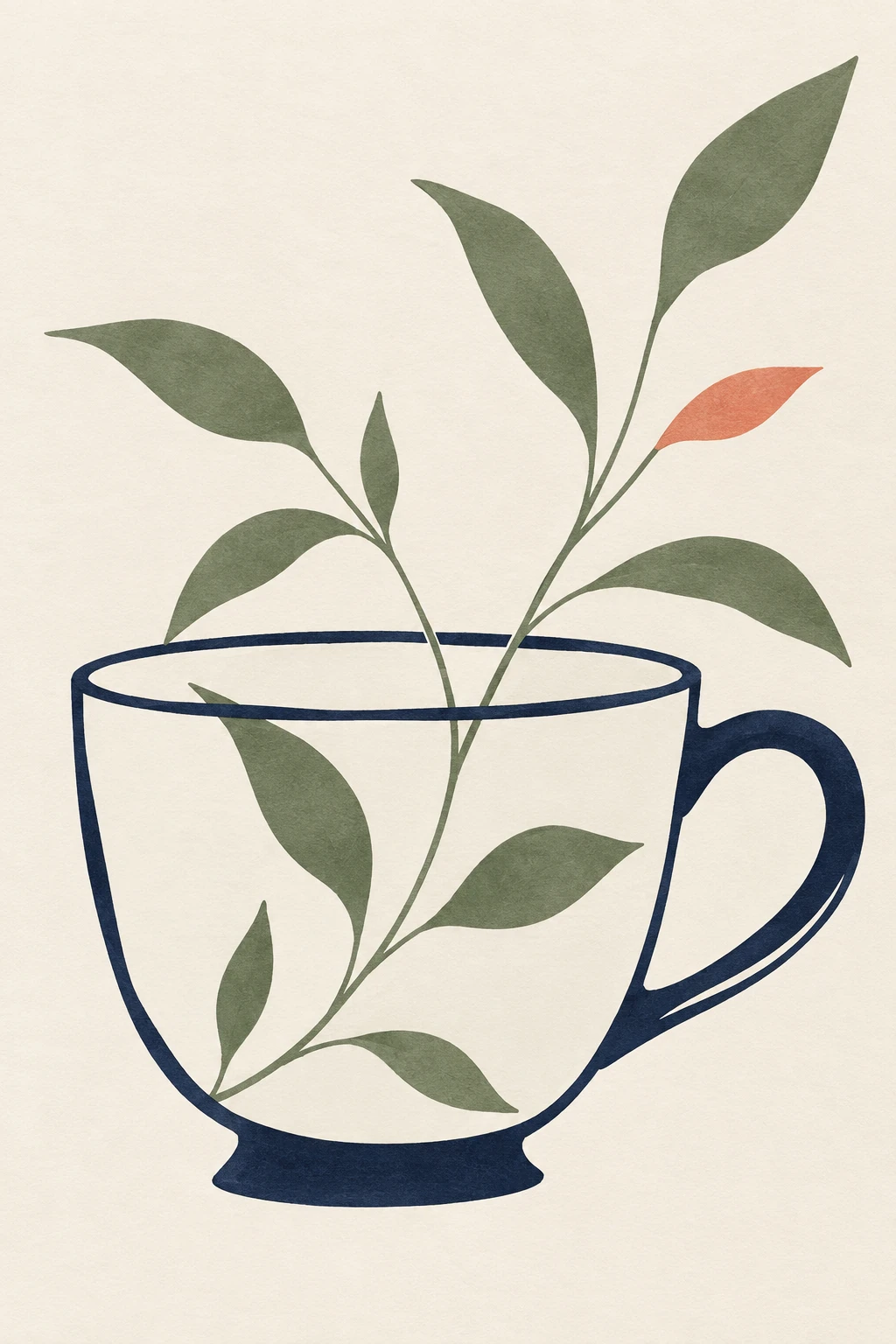
Imagine a personal poster about taking a quiet break. A cup can provide the main shape, while leaves suggest a connection with nature. The concept might be as simple as a small pause with a little greenery. That gives you a reason to choose both ingredients instead of filling the frame with attractive objects. If the second photograph does not reinforce the idea, save it for another piece.
Give the images different jobs. The main shape is what you want viewers to recognize first; the secondary texture adds rhythm, atmosphere, or meaning. They do not need equal visual strength. Dense foliage may make an appealing photograph by itself but obscure the curve of a cup when combined with it. Choose each ingredient for its role in the finished image, not only for how well it works independently.
In its Snapseed description for iPhone and iPad, Google describes Double Exposure as combining two photos using blend modes inspired by film and digital processing.[1] A blend mode is a way of controlling how two images interact visually when combined. This guide focuses on the concept and source selection. Mode names, button positions, and gestures should follow the version you actually use rather than assumptions about another device’s interface.
Distinguish this from placing photographs side by side in a collage. A collage can keep each photograph readable as a separate panel. A composite uses its ingredients to build one new image. The useful question is therefore not just how many pictures fit, but which part should remain dominant. Adding a third photograph rarely clarifies a relationship between two images that is still undecided.
Choose a Snapseed Double Exposure pair that leaves room for the main shape
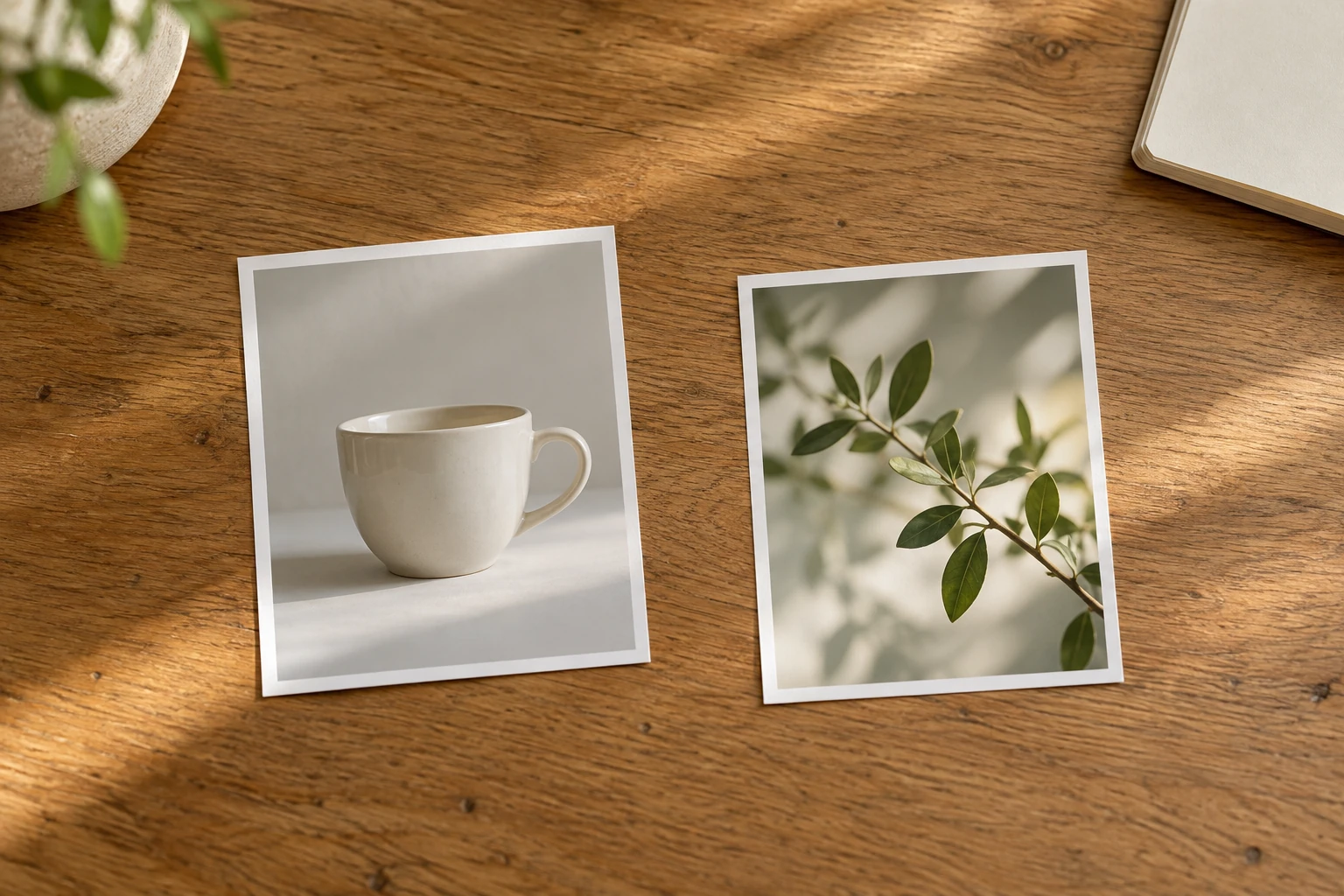
Look for a main photograph with an easily recognizable shape. For a cup, the handle, rim, and curved body can all provide important clues. A quiet background gives you room to judge the relationship between shape and texture. This does not mean you must use a white backdrop. The point is to avoid too many competing lines or objects before introducing the second ingredient.
Now examine the second photograph. Space between leafy branches can leave room for the cup’s contour, while a dense pattern may make every area equally busy. Consider the direction of the stems, the light and dark areas, and any open space. Choose something that supports a quiet-break concept. Another intention may call for another rhythm; no color pairing or level of complexity is right for every piece.
Consider the light without insisting that both photographs pretend to come from the same location. A composite can look imaginative, but conflicting highlights may distract from its idea. Think about which areas should read as shape and which as texture. If the handle disappears into a cluster of leaves, reconsider the source pairing or simplify the competing detail rather than immediately seeking a stronger effect.
Assess the design at both small and large sizes. At the intended sharing size, you should still be able to name the main object without tracing every detail. Closer up, look for awkward intersections: a stem appearing to cut through the handle, for instance, or a leaf edge touching the cup’s rim in a distracting way. These are composition checks, not evidence that any particular blend mode will produce a specific result.
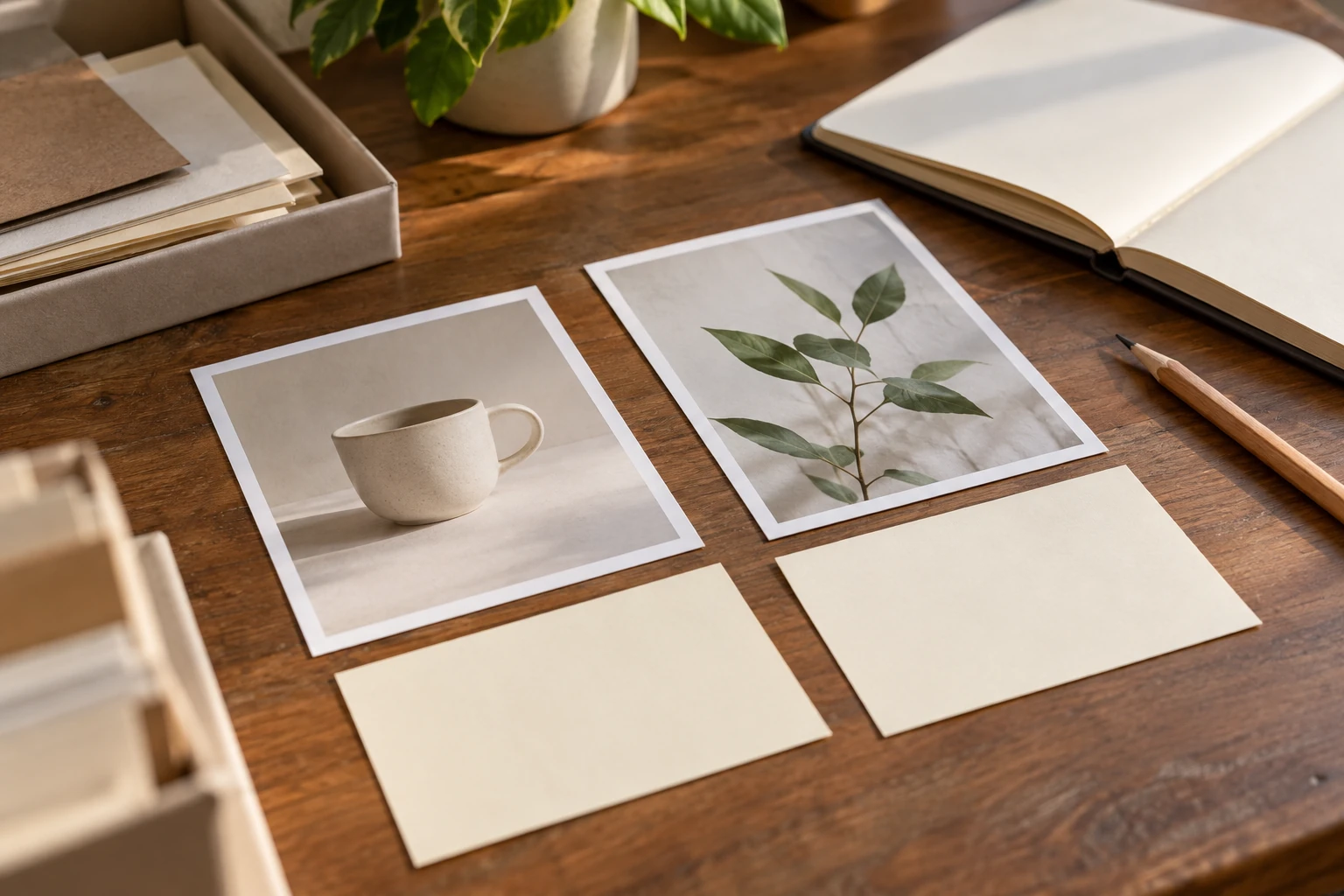
Keep your initial selection before exploring alternatives. If you want to document a process you genuinely perform, retain the same pair of source files and record the changes in the application you use. Do not silently replace a source and describe the new picture as the result of the preceding step. For a concept exercise, explaining the main shape and the secondary image’s role is enough; you do not need to invent a workflow that never happened.
Label the composite and keep both source records
Before sharing the artwork, make sure the rights to both ingredients fit your purpose. A downloadable photo is not automatically available for editing or promotional use. Creative Commons explains that its licenses distinguish commercial use and adaptation as well as requiring attribution.[2] Read the license at each file’s original source, not just a search-result label. Naming the photographer does not replace permission you do not have.
Keep the creator’s name, source URL, license name and version, permission evidence, and a record of your changes. Follow the applicable credit and other conditions. ND restricts sharing adaptations, while NC limits use to noncommercial purposes; privacy or publicity rights involving people shown may need separate clearance.[2] If the rights remain unclear, hold that material back from publication or find an alternative whose permission you can verify.
A simple caption helps viewers understand the image: “Composite artwork combining a cup photograph and foliage; not a record of one scene.” Add the credits your sources require. Avoid suggesting you found a transparent cup containing a forest, or presenting a composite as evidence of a product’s condition. Imagination can be the appeal of an artwork without obscuring what a camera actually recorded.
For a custom manipulation project, bring a short concept, both rights-cleared ingredients, the intended use, and a list of details that must remain accurate when talking to SCI Magie. Its custom-manipulation scope is determined through consultation, rather than a promise that every design can be completed in the same way.[3] Powered by Shaniba Creative Industry.
All visuals here are AI-generated concept illustrations, not event photographs, customer work, screenshots, or Snapseed Double Exposure results. The source-pair pictures illustrate the roles of ingredients; they are not files used to produce the hero.
References
[1] Google: Snapseed on the App Store