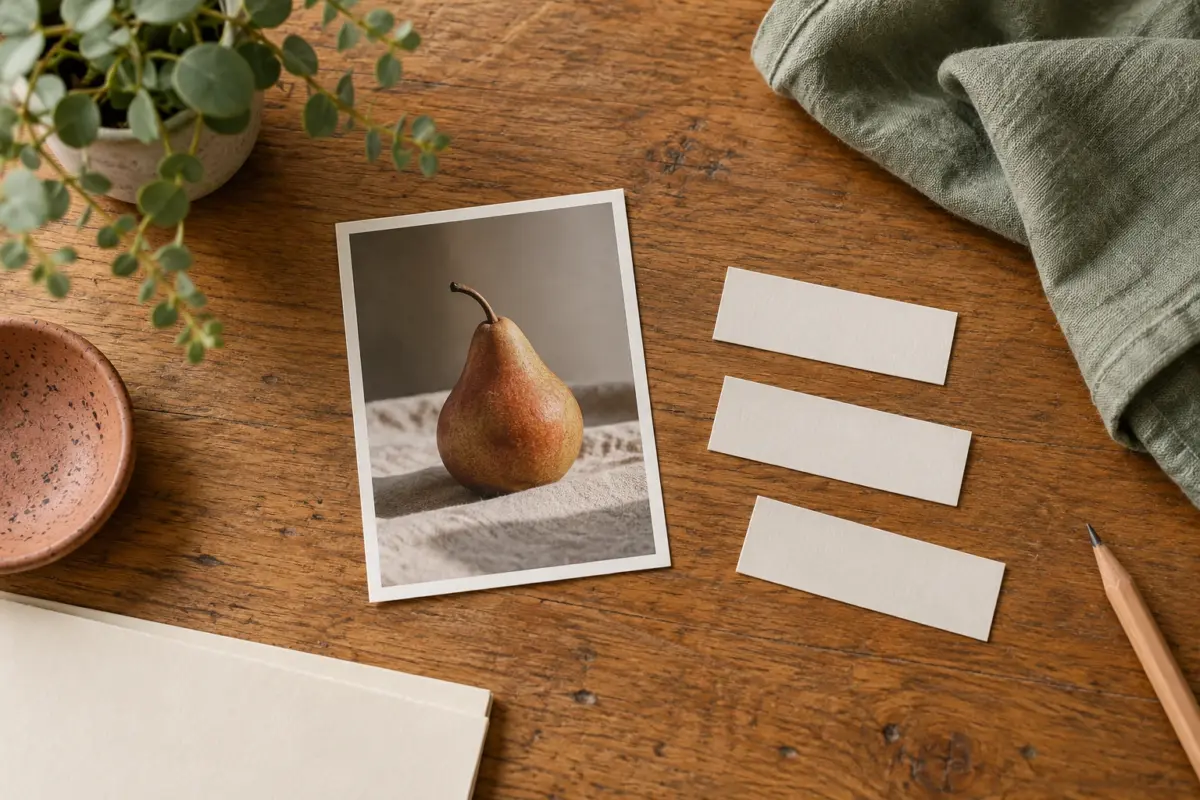
Your pear photo is almost there, but one adjustment has made its shadow too heavy. You still like the composition and color. One decision may need attention, not the entire edit.
Snapseed Stacks lets you revisit edits already applied to an image. Google’s official documentation describes it as part of a non-destructive workflow: you can modify previously applied Tools and Filters without starting over. The useful question is not “How do I undo everything?” but “Which decision needs another look?”
This guide follows the documented workflow rather than a particular device’s button layout. It applies when the image’s stack is currently available; it is not a promise that editing history will remain available permanently.
Snapseed Stacks: find the decision that went wrong, not a reason to undo everything
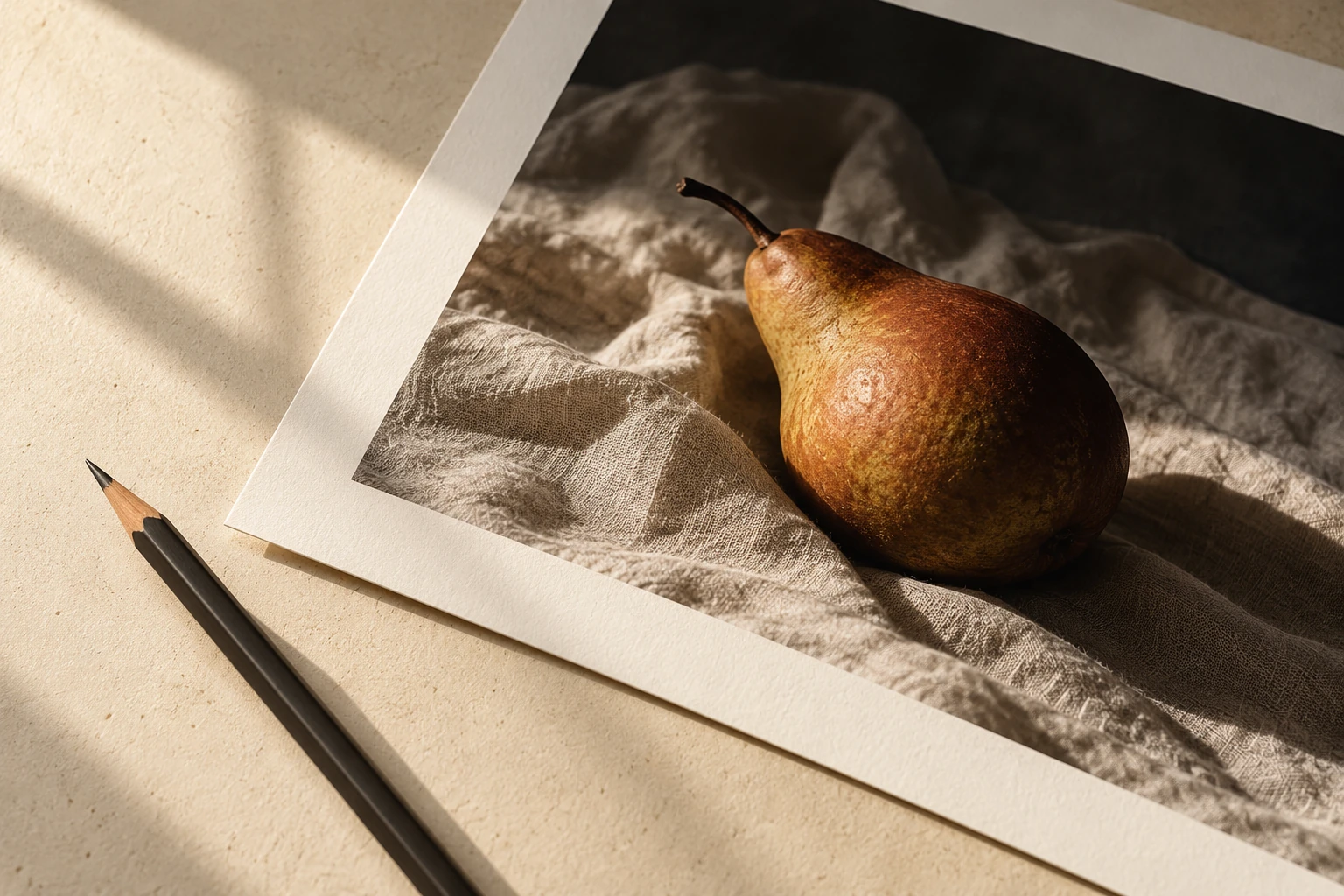
Before opening an adjustment, describe the problem in a sentence. “The shadow is too dark, but I like the pear’s color and the bright areas” gives you a clearer starting point than “The edit looks wrong.” It separates what needs attention from what you want to keep.
Open Stacks for the current image and look for the step most plausibly connected to your concern. Do not assume the last step caused it just because it was the most recent. An earlier adjustment can become more noticeable after later changes. Google explicitly notes that the order in which Tools and Filters are applied matters.
Imagine three decisions: A improves brightness, B increases contrast, and C changes the color mood. If the shadows now feel heavy, B is a reasonable place to investigate, not a proven culprit. Changing C at the same time would make it harder to tell which revision helped.
Reopen or remove only the tool that needs changing
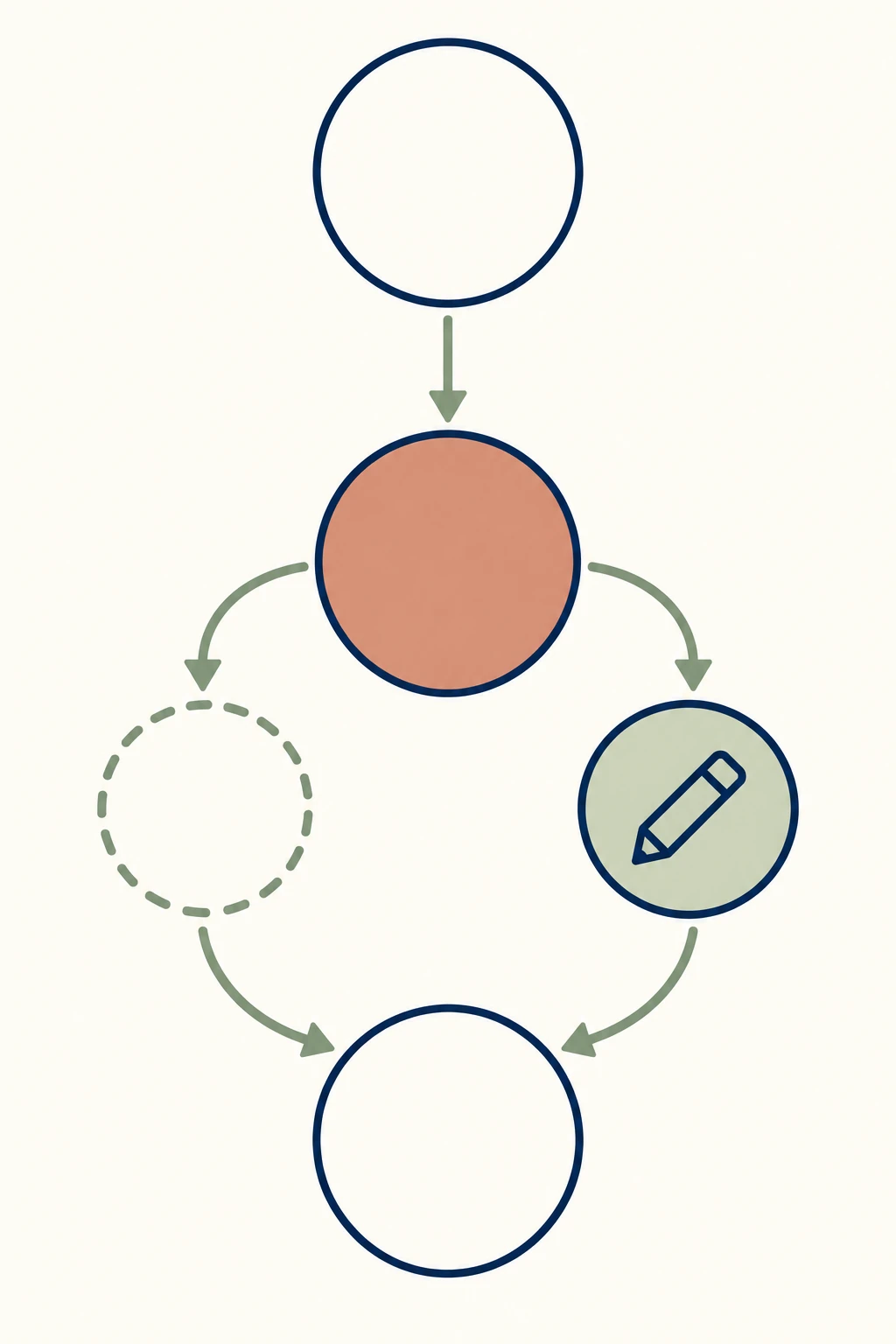
Revising a setting and removing a step are different choices. If an adjustment still serves a useful purpose, try reopening it first. If its contribution no longer belongs in the image, removing it may be more appropriate. Make the choice based on the photograph, not on a rule that every previous edit must stay.
Under “Modifying an Existing Tool or Filter,” Google describes this sequence:
1. Open Stacks for the current image.
2. Tap the relevant Tool or Filter, then open its edit menu.
3. Reopen that Tool or Filter, make the relevant changes, and return to the Stacks view.
4. Select the top-most Tool or Filter in the Stack to reapply subsequent edits.
Removal serves a different purpose. Google explains that a Tool or Filter can be deleted from a point in the workflow without undoing and recreating the later edits. Select the entry in Stacks, open its edit menu, and use the deletion action. Then select the top-most Tool or Filter to reapply the subsequent edits.
Reapply later steps and check how they interact

Return to your original goal. Is the table texture easier to read? Are the bright areas still comfortable to look at? Does the pear’s color remain believable? Look at the whole composition, then inspect the problem area more closely. A modest correction that preserves the photograph’s direction is often more useful than a dramatic change that creates another distraction.
If you want more careful help, describe the revision just as clearly: “Soften the shadow, but keep the pear’s shape and the warm atmosphere.” You can discuss the photo’s purpose and what must stay unchanged with SCI Magie, whose visual approach includes observation, considered retouching, and quality control.
Powered by Shaniba Creative Industry
All visuals are AI-generated concepts, not screenshots, actual Snapseed editing results, or customer work.
Sources
Google Snapseed Help — Stacks: modifying, reopening, deleting, reapplying subsequent edits, and the importance of operation order.
SCI Magie — official home page: Observe, Retouch, and Quality Control approach and discussion of photo requirements.