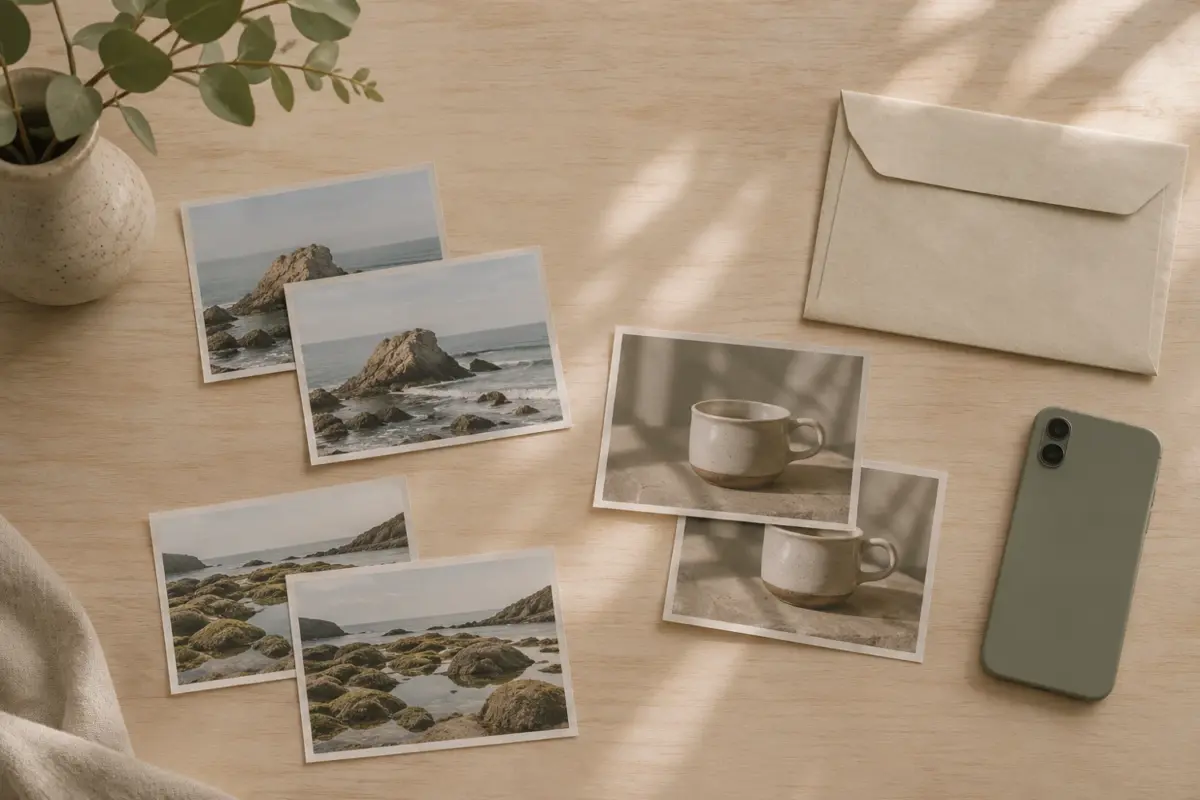
You open your graduation photos to choose one for editing and find several images that seem identical. One might be the version you want to print, another a tighter crop for a post, and another a copy you no longer remember saving. Before tidying them, work out which versions still serve a purpose.
The iPhone Merge Duplicates feature handles duplicates identified by Photos. That is different from choosing the best expression or deciding which edit suits your plans. Apple describes Merge as combining the highest image quality and relevant data into one photo, with the other duplicates moving to Recently Deleted. Your creative preferences still need a separate decision. [1].
The opening image is an AI-generated concept of organising prints, not device documentation or customer work.
Separate duplicates from deliberately saved alternatives
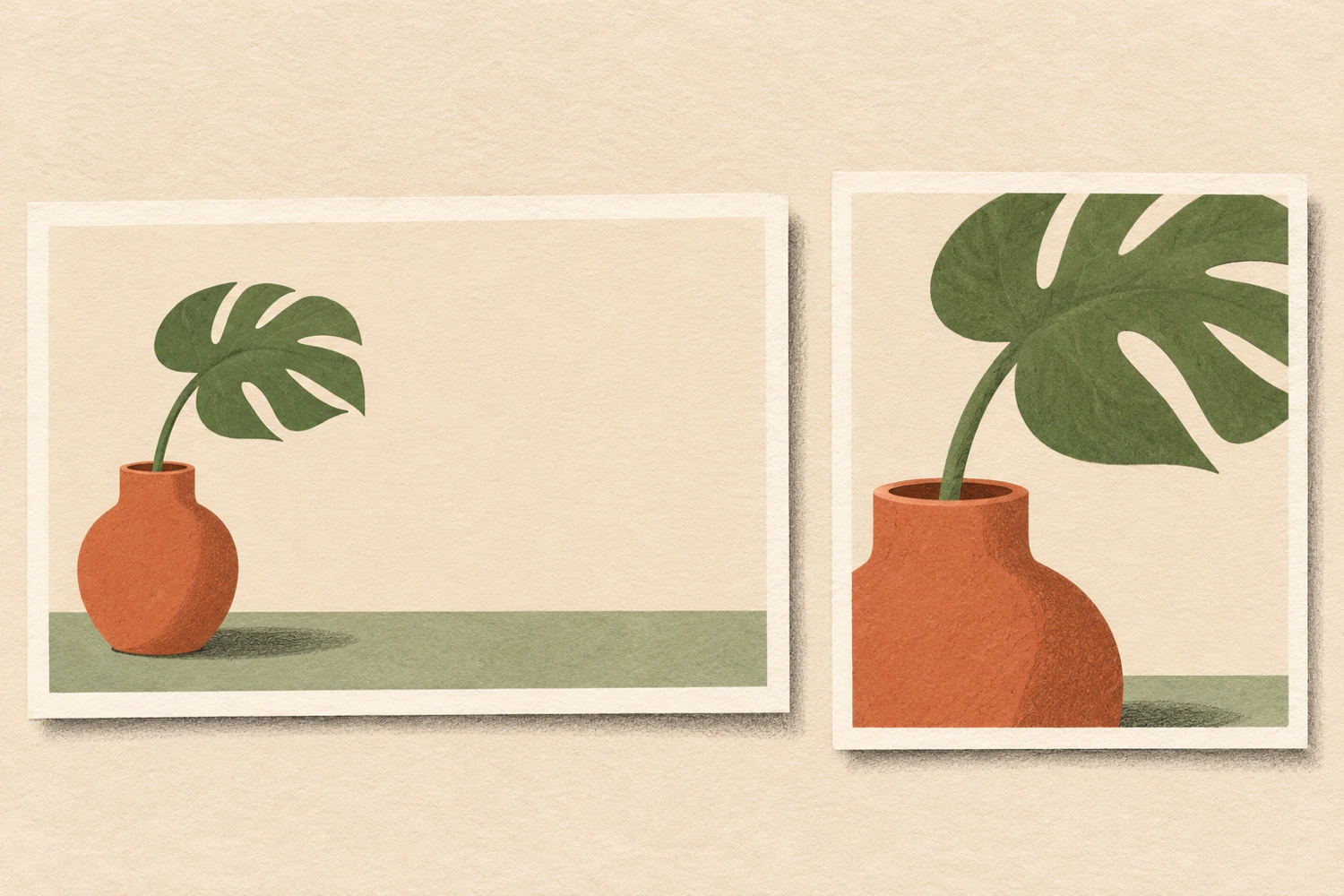
A loose product crop can leave room for promotional text, while a tight crop reveals details. Color and black-and-white versions can also serve different purposes. These are reasons to keep alternatives, not a description of Apple’s classification algorithm.
Compare the expression, crop, colors, and details you still need. If the two versions’ purposes are unclear, postpone merging them.
Duplicates is available from iOS 16 and iPadOS 16.1. Automatic detection takes time; the album appears after indexing and finding duplicates. Its absence does not establish that every file is unique. [1] [2]
Before an important cleanup, retain an openable separate copy outside iCloud Photos synchronization. Apple advises backing up wanted photos before deletion; items in iCloud Photos are not duplicated in iCloud Backup. [1] [3]
iPhone Merge Duplicates: understand what stays
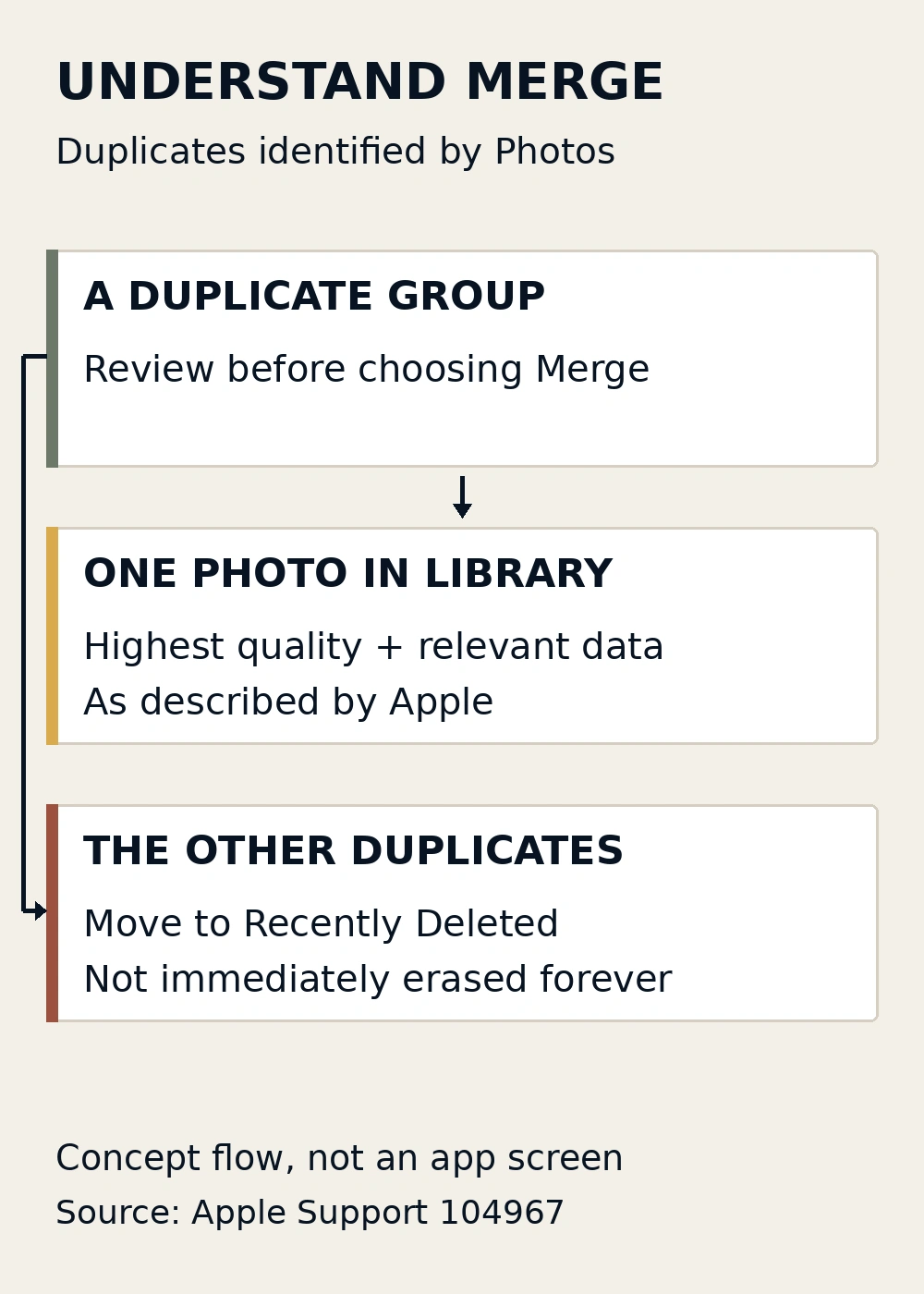
Apple describes Merge as keeping the highest image quality and relevant data in one photo; the other duplicates move to Recently Deleted. This is not an aesthetic choice or a guarantee that every metadata field—the information accompanying a file—stays exactly as expected. [1]
To combine one group, Apple’s current guide gives the following route. These are the English menu labels used in that documentation; older iOS versions may organize the interface differently.
- Open Photos, then tap Collections at the bottom.
- Swipe up and open Duplicates under Utilities.
- Review the group you intend to combine, then tap its Merge button.
- Confirm with Merge [Number] Items, using the number shown for that group. [1].
Start with one reviewed group, then inspect the retained photo before continuing. Merge here manages duplicates; it does not create a montage.
Keep the recovery window and iCloud consequences in mind
Recently Deleted gives you a chance to reconsider, not a long-term archive. Apple says deleted photos and videos remain there for 30 days, after which they are permanently deleted. The other duplicates from a merge also go to that album. If you realize you need a version, check promptly rather than waiting for the deadline or emptying the album to make the cleanup feel finished. [1].
To recover an item, open Photos → Collections → Utilities → Recently Deleted. Tap View Album and unlock it using Face ID or Touch ID as described by Apple. Tap Select, choose the photo or video, then use More → Recover and confirm Recover. Recovered items return to your Library. Album authentication is enabled by default from iOS 16 and iPadOS 16.1. [1].
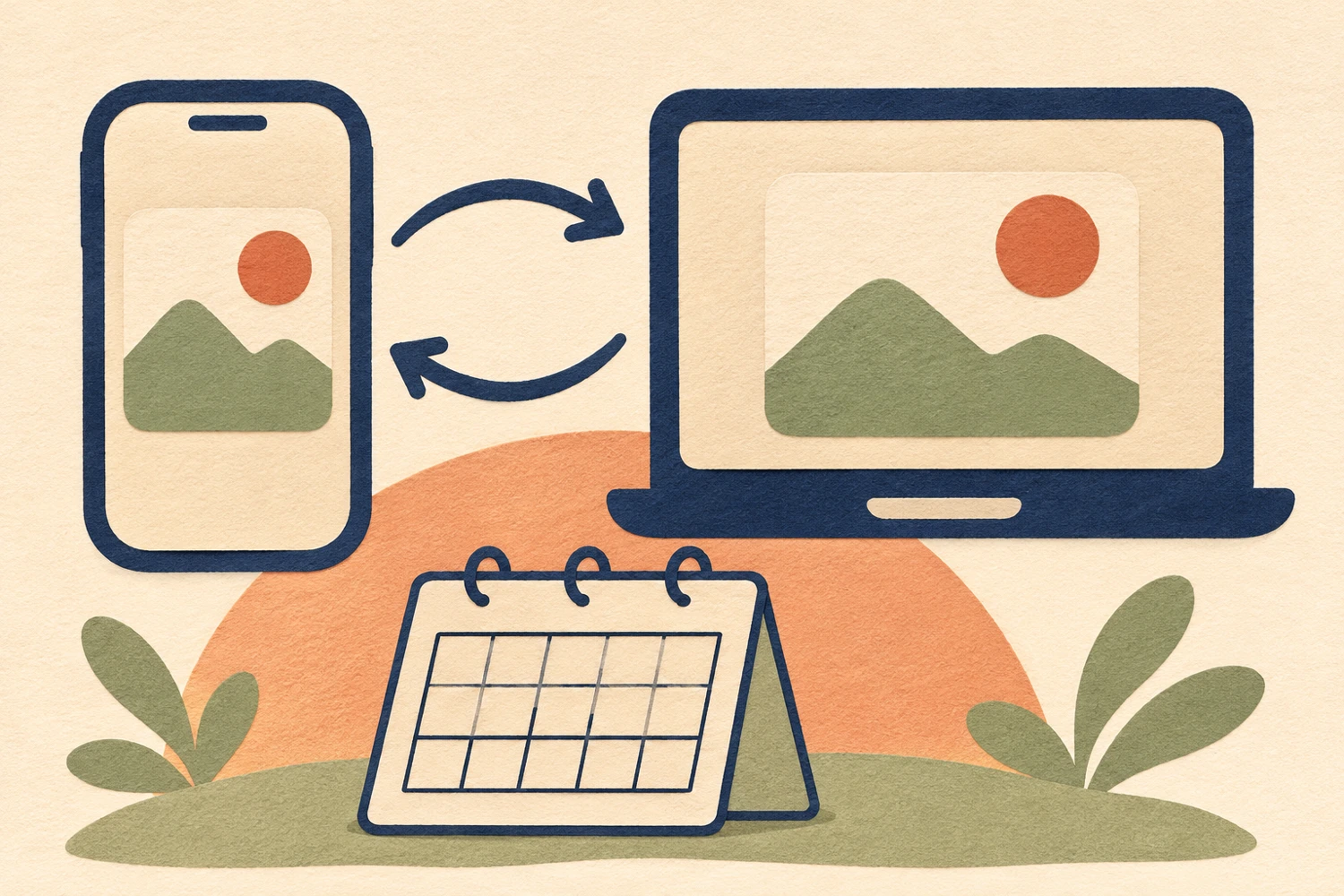
With iCloud Photos, deletion carries across devices using the same Apple Account. A photo visible on your iPhone and Mac is not two independent backups; keep a separate copy outside synchronization. [3]
Once your reference version is clear, you can move into editing with a more specific goal. If you need help refining the photograph itself, tell SCI Magie how you want to use it and which details must stay unchanged.
SCI Magie / Powered by Shaniba Creative Industry
Sources: [1] Apple: deletion, Merge, recovery; [2] Apple: Duplicates detection; [3] Apple: iCloud Photos.